The best AI tools for graphic designers don’t replace your eye, your taste, or your craft. They quietly take over the parts of the job you never enjoyed in the first place. We’ve spent years watching design tools come and go, and the shift happening now is real, so we went looking for the ones that actually earn a place in your workflow.
They free up the hours you’d rather spend designing. The time that used to go into tracing a low-res logo, hunting for a color palette that holds together, or building the fifth version of a landing page, that’s the work AI now handles, and it slots into how you already work with no steep learning curve. What you get back is time for the part only a designer can do.
Every tool here does a different job. You won’t sit through ten versions of the same image generator. The ten span color, typography, illustration, imagery, layout, and web design, and each was picked because it does one specific thing better than the manual way, from building a working website out of a sentence to turning a pixelated logo into clean, editable vectors.
This is the kind of list you bookmark. A few are handy utilities you’ll pull up now and then; others work their way into your process until they’re just part of how you design. Open them, run them against real work, and see which ones stick. Here are ten worth your time.
1. Google Stitch
Best for: Turning written or spoken briefs into editable website and app interface designs.
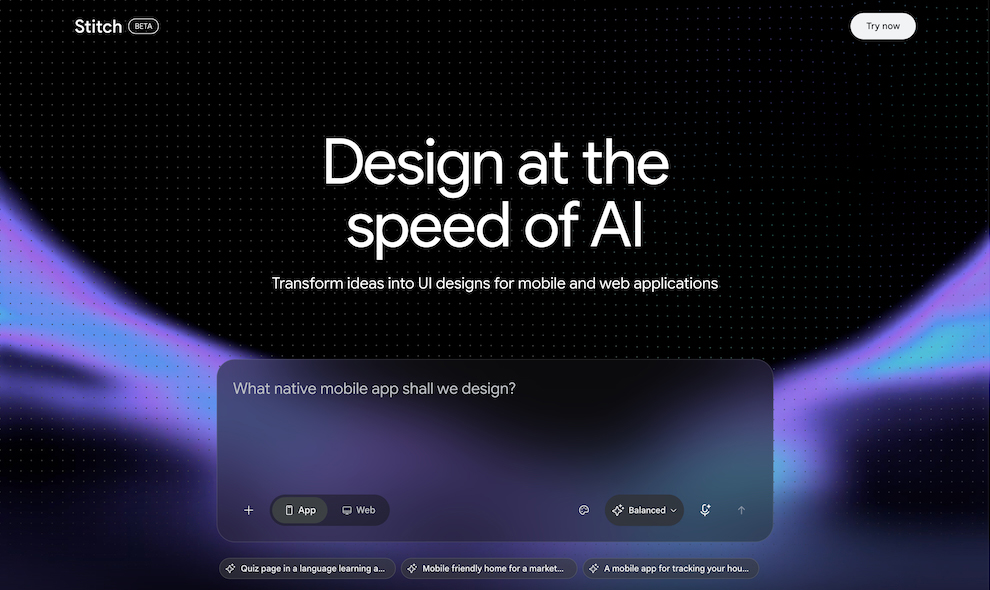
Description: Describe a website in plain English and watch the layout, typography, colors, and navigation come to life. Google Stitch is an AI-powered design tool that turns simple text or voice prompts into high-fidelity website and app interfaces. Type something like “a minimalist portfolio website for a graphic designer with oversized typography, a dark theme, and a project gallery,” and Stitch generates an interface you can refine through further prompts or by editing directly on its infinite canvas.
Key features:
Generate complete website and app interfaces from text or voice prompts.
Lay out and refine multiple screens on an infinite canvas.
Connect screens into interactive, clickable prototypes.
Watch designs build in real time and redirect the AI mid-flow.
Export to Figma or generate front-end code.
Why designers will like it: Instead of spending hours on initial website concepts, you can explore several creative directions in minutes and refine the one that fits, ideal for portfolio sites, landing pages, and quick client-ready concepts.
Price: Free, with usage limits. Stitch is an experimental Google Labs product, so features and limits may change.
Best for: Generating editable vector icons, illustrations, and logos in a consistent style.
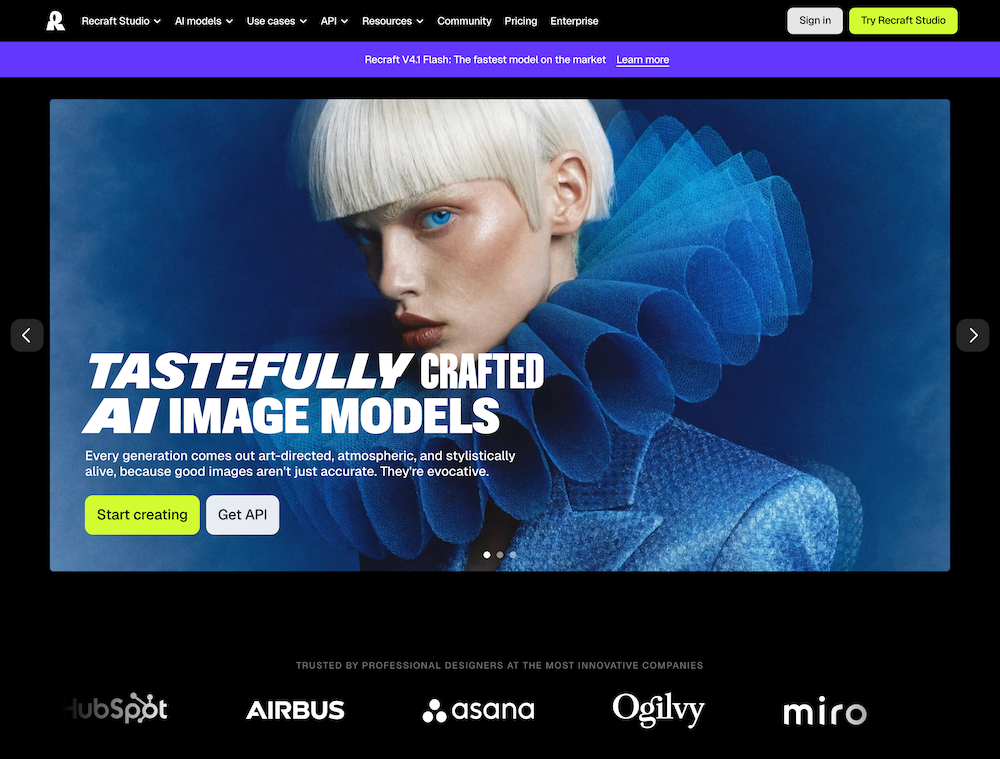
Description: Most AI image tools hand you a flat PNG that falls apart the moment you scale it. Recraft is built differently: it generates true, editable vector graphics, so the icons, illustrations, and logos you create stay crisp at any size and open cleanly in Illustrator or Figma. Describe what you need, set the style, colors, and direction, and generate a matching set rather than one mismatched piece at a time. It will also vectorize existing raster art.
Key features:
Generate editable SVG vectors, not flattened images.
Produce matching icon sets in a single consistent style.
Create illustrations, logos, and full brand kits from prompts.
Guide output using your own reference images.
Vectorize, recolor, and edit existing artwork.
Why designers will like it: Anyone who has tried to assemble a cohesive icon set from three different libraries knows the pain. Recraft keeps everything on-style, which makes it genuinely useful for building a consistent visual identity rather than one-off art.
Price: Freemium. A free tier covers everyday use; paid plans (from around $12/month) add more generations, higher limits, and commercial rights.
Best for: Building color palettes that hold together across a real layout.
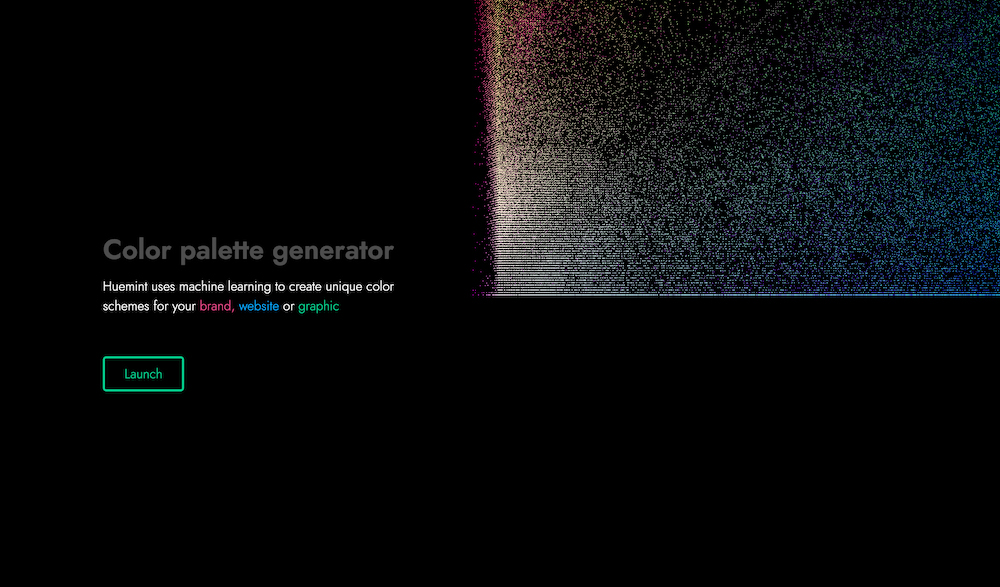
Description: Most palette generators throw five random swatches at you and leave the hard part, making them work together, up to you. Huemint uses machine learning to generate color schemes based on how the colors will actually be used: background, foreground, accent. Steer it toward branding, a website, or an illustration, lock the colors you want to keep, and regenerate the rest around them until the whole thing feels balanced.
Key features:
Generate palettes tuned to context (brand, web, illustration).
Preview colors in real layout mockups, not just swatches.
Lock individual colors and regenerate the rest.
Contrast-aware combinations built to work together.
Why designers will like it: When a client hands you one brand color and asks for a full palette around it, Huemint gets you to a balanced, usable scheme in seconds, complete with a preview of how it will look in context.
Best for: Finding font pairings and checking whether they actually work.
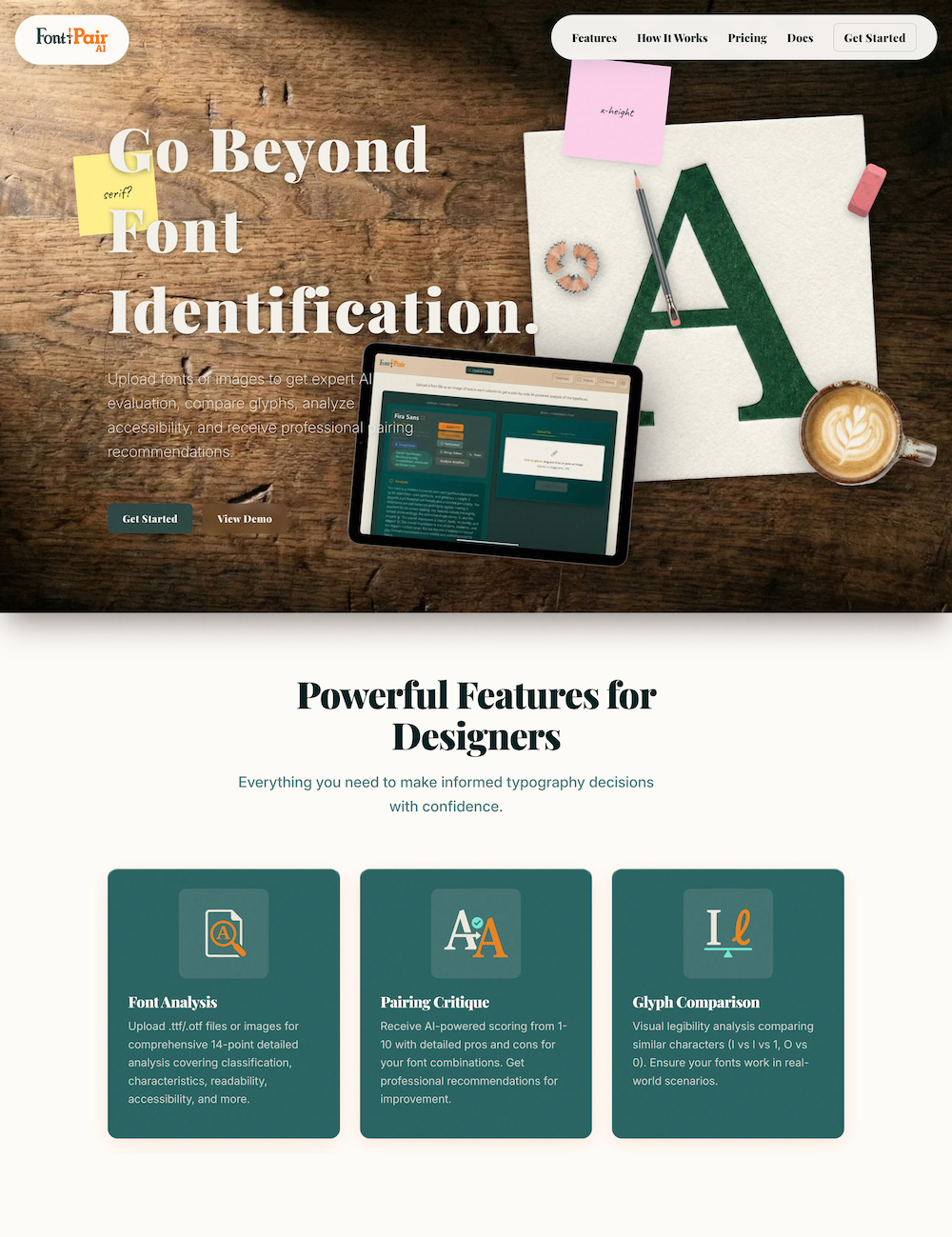
Description: Picking two fonts that look good together is one thing; knowing whether they are readable and accessible is another. FontPair AI takes a font or an image and runs it through an AI analysis, comparing glyphs, scoring accessibility against WCAG standards, and recommending pairings that hold up. Instead of guessing whether your heading-and-body combination works, you get an actual read on it.
Key features:
Analyze fonts from an uploaded image or file.
Get AI-driven pairing recommendations.
Compare glyphs side by side.
WCAG accessibility and readability scoring.
Why designers will like it: It goes past “these two look nice” into whether the type will actually read well for everyone, which is the part most pairing tools skip. Handy for brand work, web, and anything where legibility carries weight.
Price: Free, with a one-time upgrade for full features. No subscription.
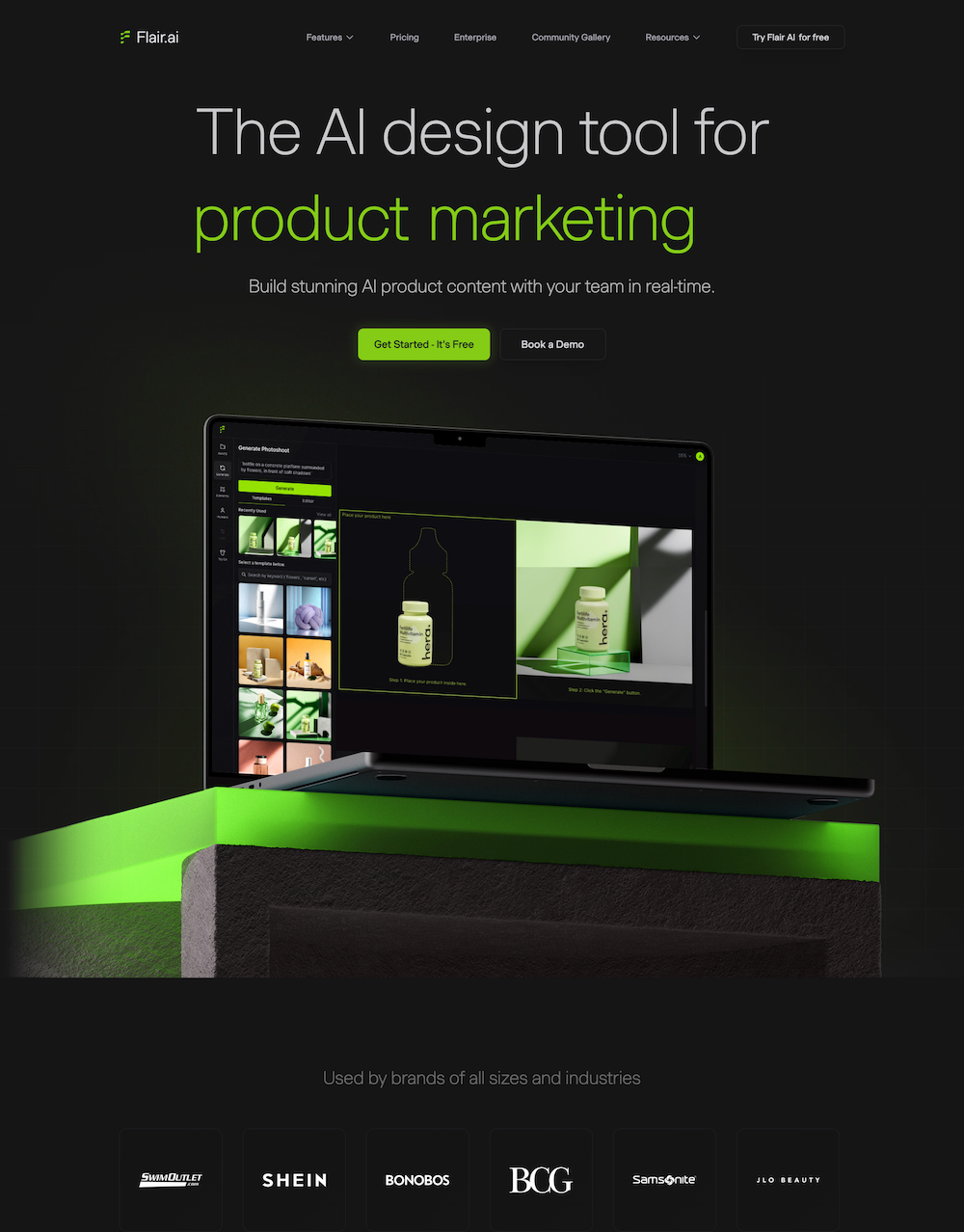
Best for: Turning a plain product photo into a polished advertising visual.
Description: A client sends you a bottle shot on a white background and wants a campaign. Flair AI gives you a drag-and-drop canvas to build the scene: stage the product, add props and backgrounds, set the lighting, and generate photorealistic product photography without booking a studio. Because you compose the shot rather than gamble on a single prompt, you keep real control over how it looks.
Key features:
Drag-and-drop canvas for staging product scenes.
Generate backgrounds, props, and lighting around a real product.
Reusable templates for consistent campaigns.
Produce ad creative, social visuals, and product video.
Why designers will like it: It maps to an actual commercial brief rather than spitting out random art, and it is one of the best before/after tools on this list, one plain photo becomes a dozen usable concepts. Just check generated shots for any changes to the product, logo, or label.
Price: Freemium. A free plan covers the basics; paid plans (from around $8/month) add higher resolution, more generations, and commercial use.
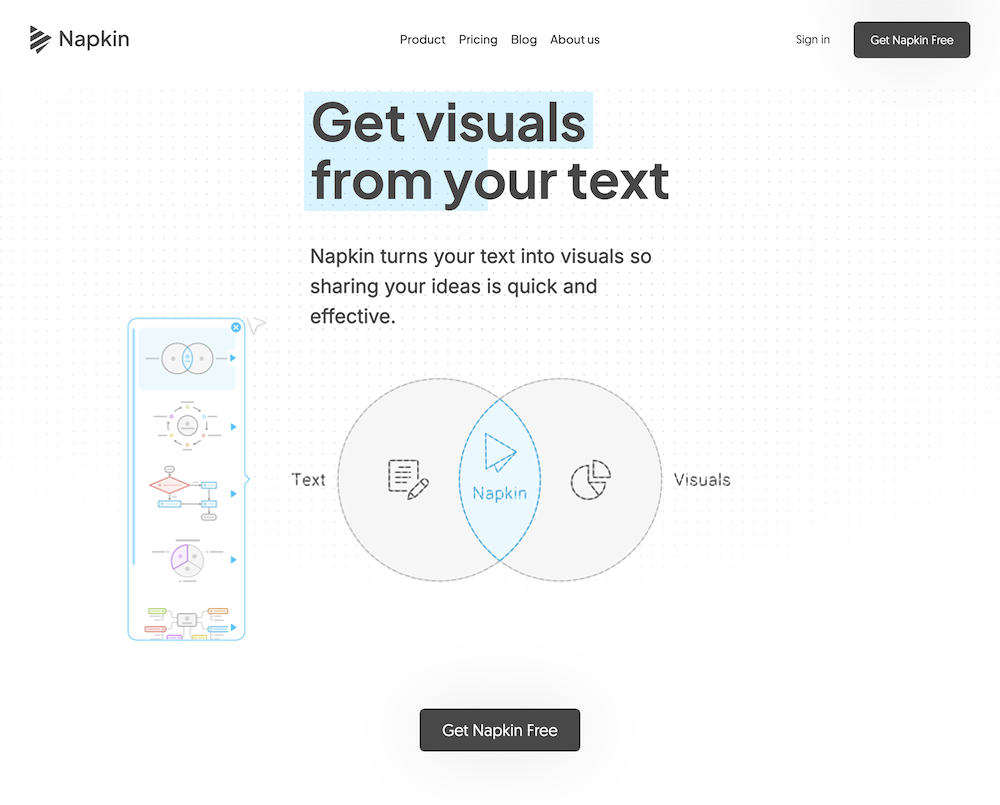
Best for: Turning written content into editable diagrams and infographics.
Description: Paste in a block of text, a process, a concept, a set of steps, and Napkin AI reads it and generates relevant visuals: diagrams, flowcharts, infographic-style graphics. You are not starting from a blank artboard; you are editing something that is already most of the way there. Adjust the elements, change colors, tweak the layout, and export it clean.
Key features:
Generate diagrams and infographics directly from text.
Edit every element, color, and layout.
Export to PNG, SVG, PDF, and PowerPoint.
Editable vector output, not a flat image.
Why designers will like it: So much of commercial design is turning information into something visual, and this handles the tedious first pass. The editable SVG export is the detail that matters, you are not locked into a flat picture you cannot refine.
Price: Freemium. A free tier covers regular use; paid plans add more features and higher limits.
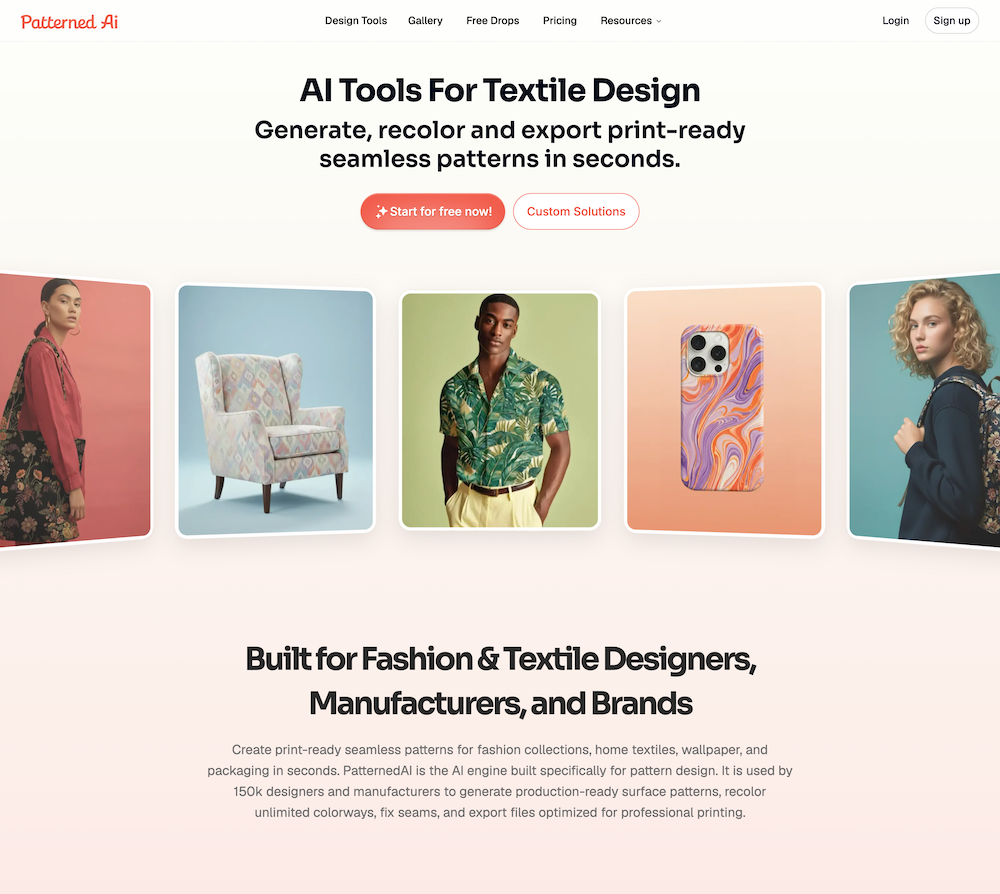
Best for: Generating seamless repeating patterns for packaging, textiles, and backgrounds.
Description: Building a pattern that tiles perfectly by hand is fiddly, slow work. PatternedAI generates seamless, repeating patterns from a written description, coffee beans and tropical leaves for packaging, a geometric print for wrapping paper, whatever the brief calls for. It will also pull patterns out of existing images, recolor them, fix broken repeats, and preview the result on a mockup.
Key features:
Generate seamless repeating patterns from prompts.
Extract and recolor patterns from existing images.
Fix broken or misaligned repeats.
Preview on product mockups; export high-res or vector on paid plans.
Why designers will like it: General image generators make pretty pictures that do not actually tile. PatternedAI is built around the repeat, which is exactly the part that makes a pattern usable on packaging, fabric, or a web background.
Price: Freemium. Free to generate and preview; paid plans unlock high-resolution and vector exports plus commercial rights.
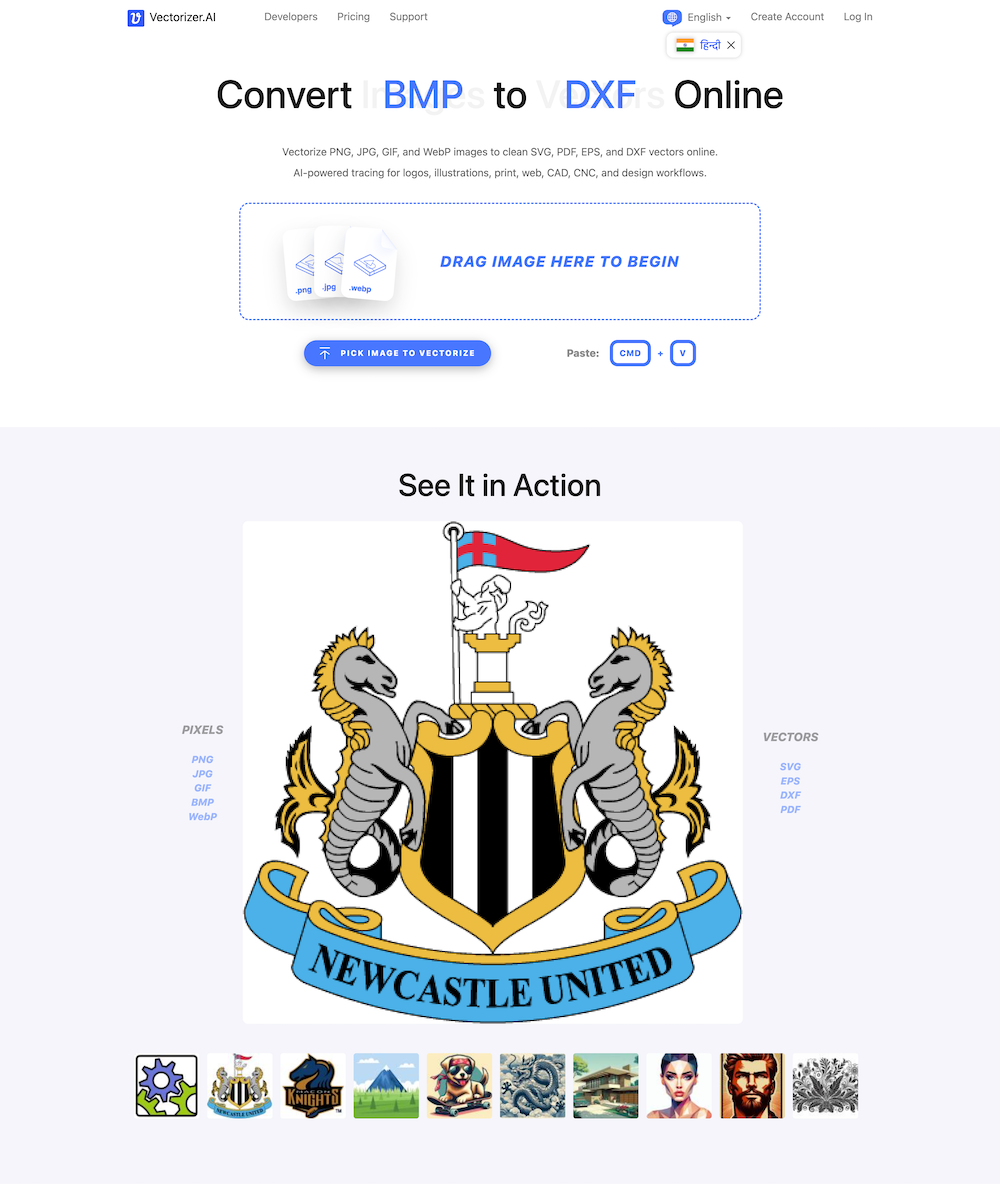
Best for: Converting low-resolution raster images into clean, editable vectors.
Description: Every designer has received a client logo as a tiny, blurry JPEG and been asked to put it on a banner. Vectorizer.AI uses AI to trace raster images into real vector artwork, actual editable shapes and curves, not a bitmap trapped inside an SVG. It handles PNG, JPG, and more, and exports to SVG, PDF, EPS, and DXF, ready for print, signage, or further editing in Illustrator.
Key features:
AI-powered raster-to-vector tracing.
Real editable shapes and curves, not embedded bitmaps.
Accepts PNG, JPG, GIF, BMP, and WebP.
Exports SVG, PDF, EPS, and DXF.
Why designers will like it: It turns one of the most tedious production tasks, manually retracing a low-res logo, into a few seconds of work. Complex or distorted source art may still need cleanup, but it saves real time.
Price: Paid. You can preview results for free, but downloading requires payment, either a subscription (around $9.99/month) or pay-per-download credits.
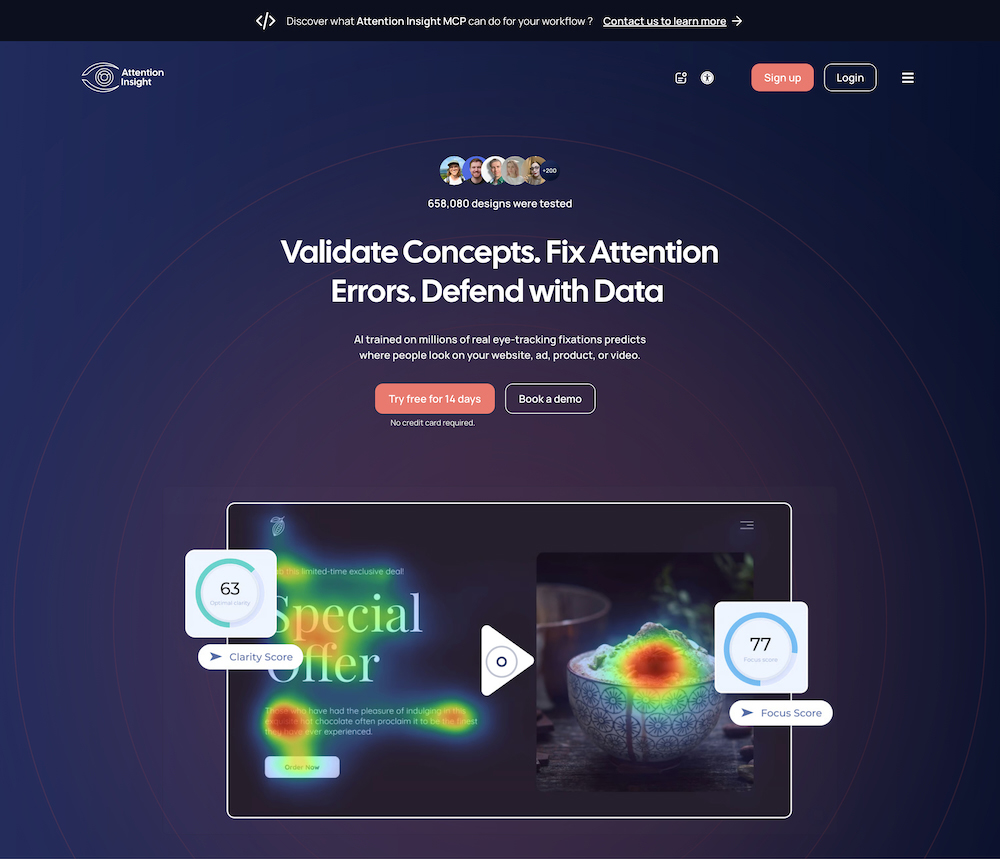
Best for: Predicting where people will look before you publish.
Description: You have spent hours on a layout, but will anyone actually notice the headline or the call-to-action? Attention Insight uses AI to generate predictive attention heatmaps, estimating which parts of a design will pull the eye first. Run it on a website, an ad, or packaging, compare two versions, and check whether your visual hierarchy is landing the way you intended. A Chrome extension brings the same analysis right into the browser.
Key features:
AI-generated predictive attention heatmaps.
Focus and clarity metrics for visual hierarchy.
Compare two versions side by side.
Works on websites, ads, and packaging; Chrome extension available.
Why designers will like it: Most AI tools help you make more; this one helps you critically assess what you have already made. Treat the heatmaps as informed predictions rather than a replacement for real user testing, but as a fast sanity check on hierarchy, it is genuinely useful.
Price: Free trial, then paid. Limited free use to test it; ongoing use runs on a subscription.
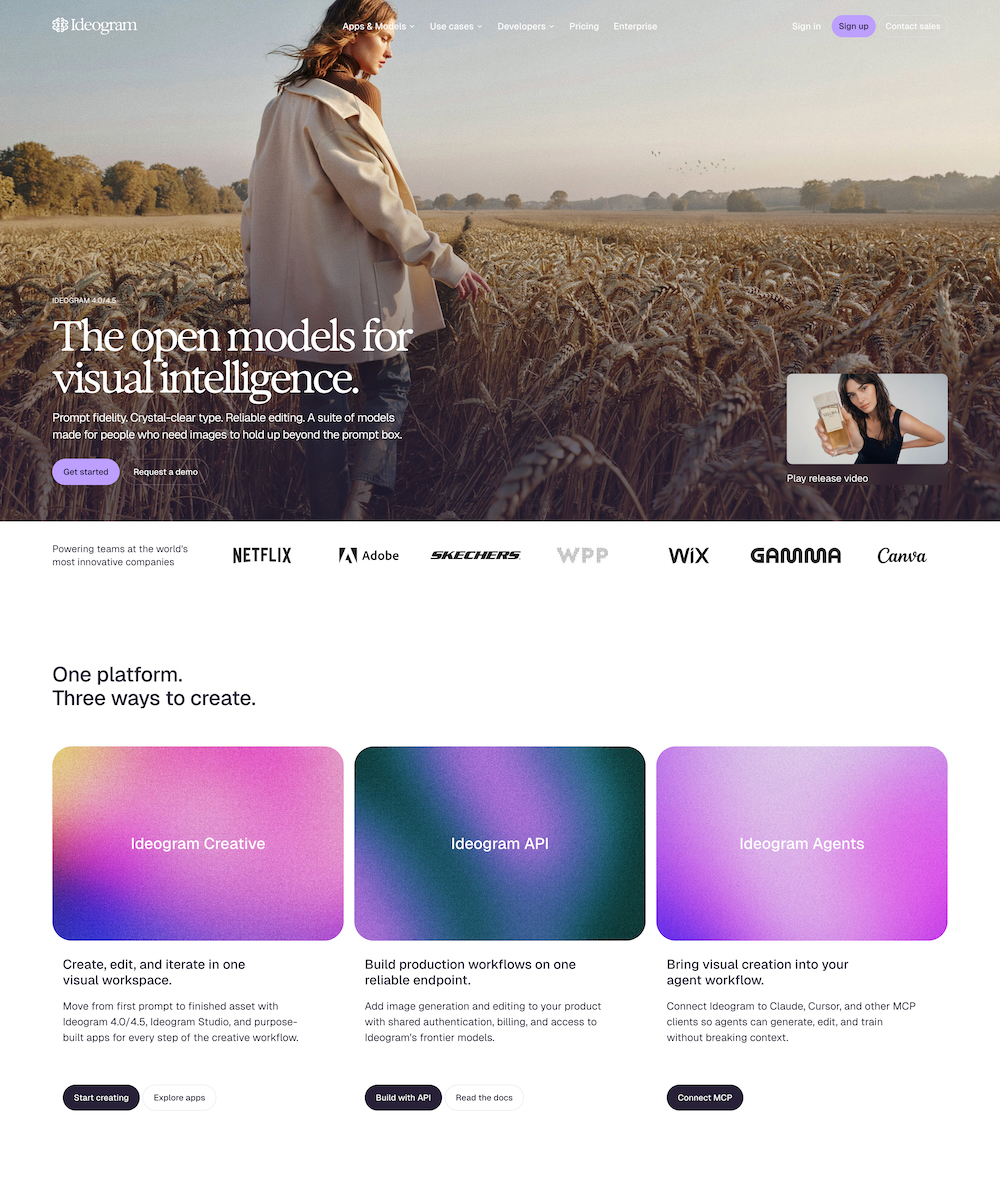
Best for: Generating images and graphics with legible, accurate text.
Description: Ask most AI image generators for a poster with words on it and you get beautiful gibberish. Ideogram is the one built to render readable, accurate text inside its images, which makes it genuinely useful for posters, mockups, social graphics, and typographic concepts rather than just abstract art. Describe what you want, specify the text, and it produces something you can actually use.
Key features:
Reliable, readable text rendering inside images.
Generate posters, logos, and typography-led graphics.
A wide range of styles and aspect ratios.
Fast iteration from simple prompts.
Why designers will like it: The “AI can’t spell” problem has kept image generators out of a lot of real design work. Ideogram solves the specific case where you need words and image together, which covers a surprising amount of everyday briefs.
Price: Freemium. A free tier includes a set number of daily generations; paid plans (from around $8/month) add more and remove limits.
Great design still starts with you. These tools just clear the path, the tracing, the resizing, the fifth revision of a layout, so the hours you save go back into the judgment, taste, and problem-solving that no model can do for you. That is the right way to read this list: not as a threat to the craft, but as a way to spend more of your day actually practicing it.
Start with the two or three that fit your work. Run them against a real project this week, keep the ones that earn a spot, and let the rest wait until a brief calls for them. And this is only the first ten, we’ve got a second set of tools worth knowing lined up, so consider this the start rather than the whole story.
Share this article with a designer friend and tell us your favorites in the comments below.