The Designer’s Guide To A Clean iPhone: Organizing Photos, Files, And Apps
Want to know how to free up storage on your iPhone? It actually matters – a lot. Whether you’re a graphic designer, web designer, or just juggling creative work on the go, your iPhone isn’t just for calls and texts. It’s your tool for snapping photos, jotting down quick notes, scanning documents, saving references, and even doing some fast edits.
However, when your iPhone is filled with files scattered everywhere, you waste time searching for the right app or document, lose focus and creative flow, and fill your storage until your phone starts to slow down or lag. So, in this article, we’ll show you how to keep your iPhone organized so it works for you, not against you.
How to Clear Storage on an iPhone and Organize Photos, Files, and Other Apps
Of course, how your iPhone uses storage depends on your habits. If you’re a designer, you’ll see that the Photos app (where you stash design elements and references), the Files app (downloads, Figma projects, Photoshop assets), and other tools, like photo editors and font apps, eat up the most space.
We’ll show you how to clear space on your iPhone in each of these three areas – Photos, Files, and Apps – and how to keep things organized going forward. Sure, there are other ways to clear space on an iPhone, but we’re going to focus on these three areas to get the best results. Depending on how you work, some tips might be more useful than others, so take a look and see which ones make sense for you.
Organize Items in the Photos App
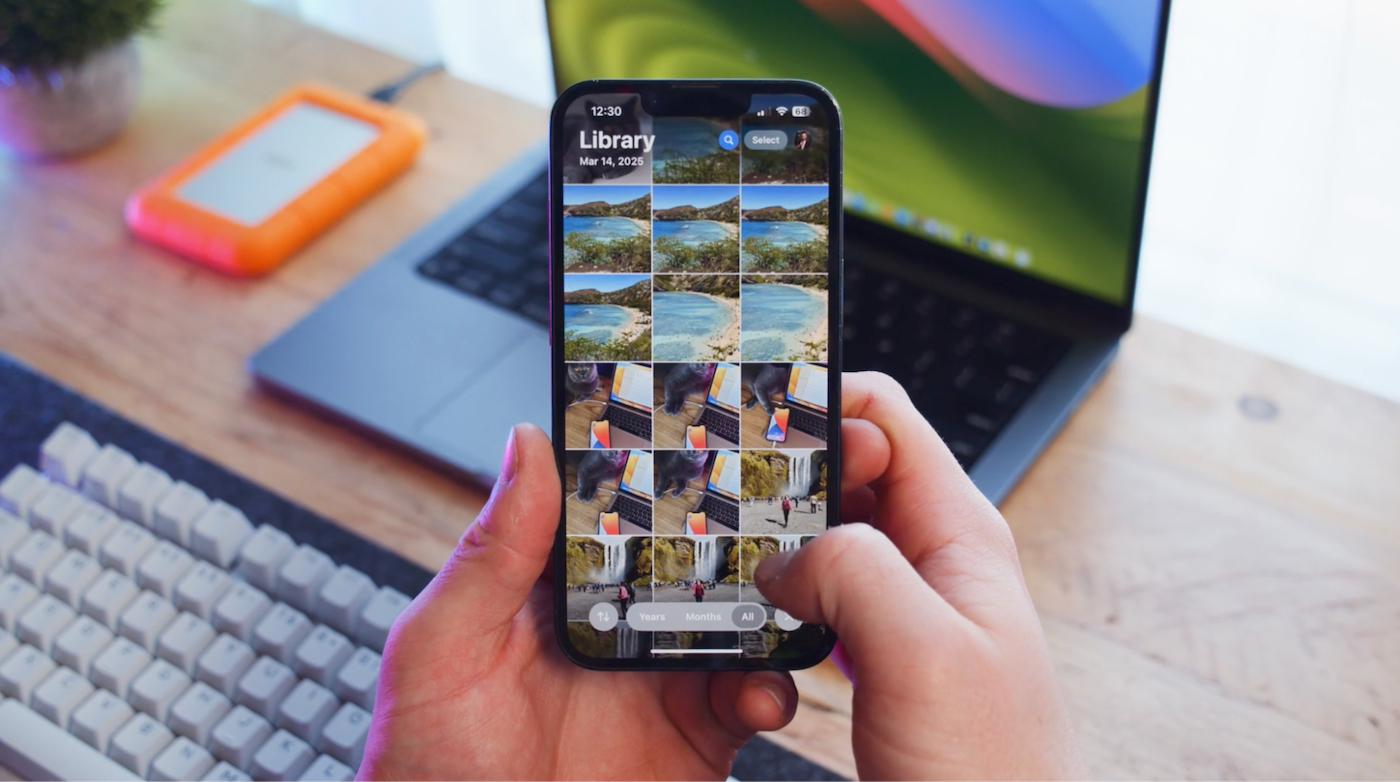
When your photo gallery is packed with too many items, it gets harder to find the references you actually need. It consumes storage, slows down your apps and iPhone, and creates visual clutter, especially if it’s full of screenshots and memes mixed in with your important images. How do you fix it? Easy: delete whatever you don’t need.
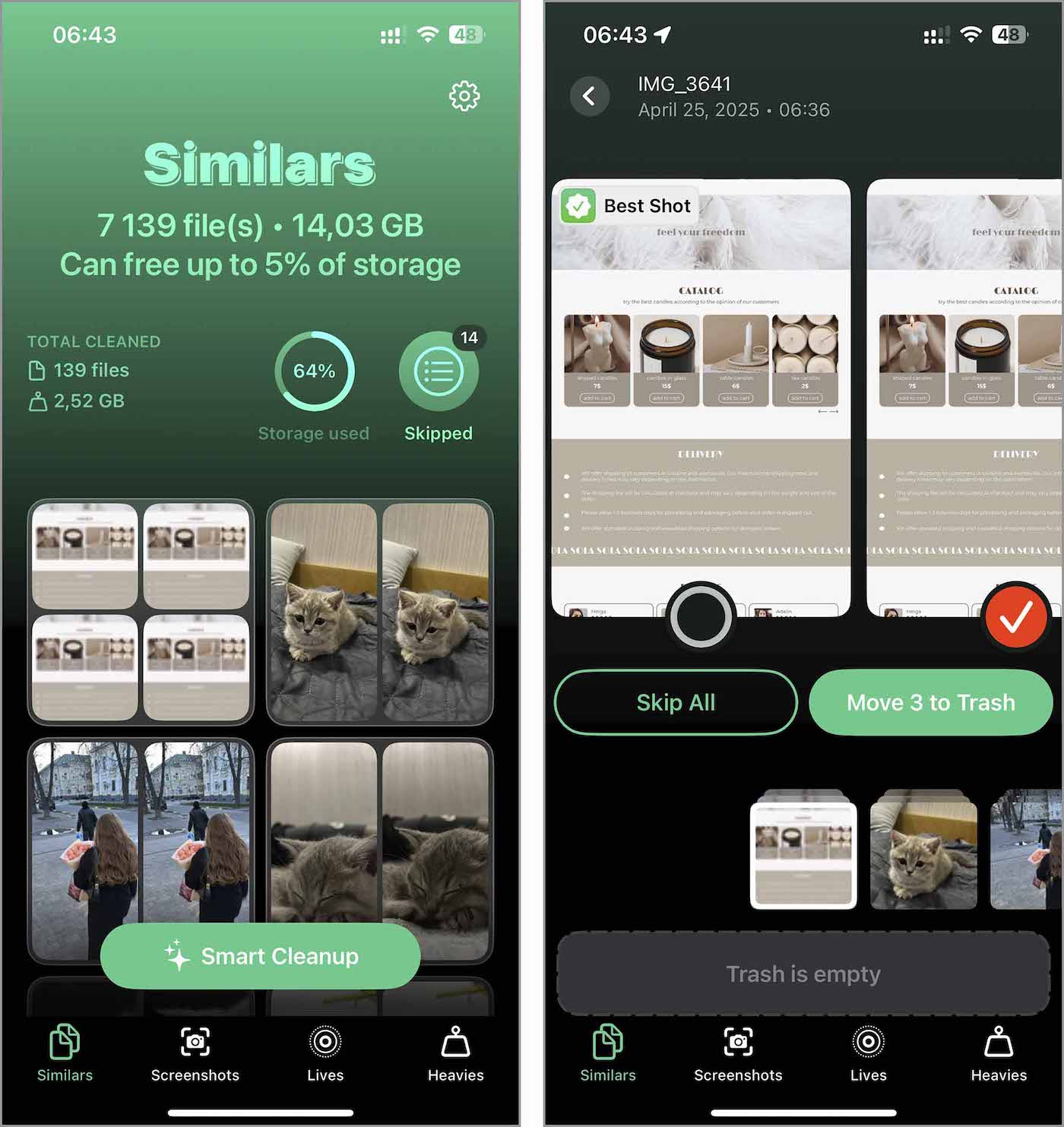
You can go through your photos and delete them manually if you’ve got the time and patience. But when deadlines are tight, that’s not always practical. In that case, try using a photo cleaner app. Not sure which one to choose from the sea of options in the App Store? We recommend checking out Clever Cleaner for iPhone: https://www.cleverfiles.com/clever-cleaner/. It’s free 9no ads, no paywalls), easy to use, and quickly clears out your gallery with just a few taps. It finds exact duplicates, similar shots, screenshots, and large files. Simply download it, let it scan your Photos app, and quickly clean your iPhone’s photo storage.
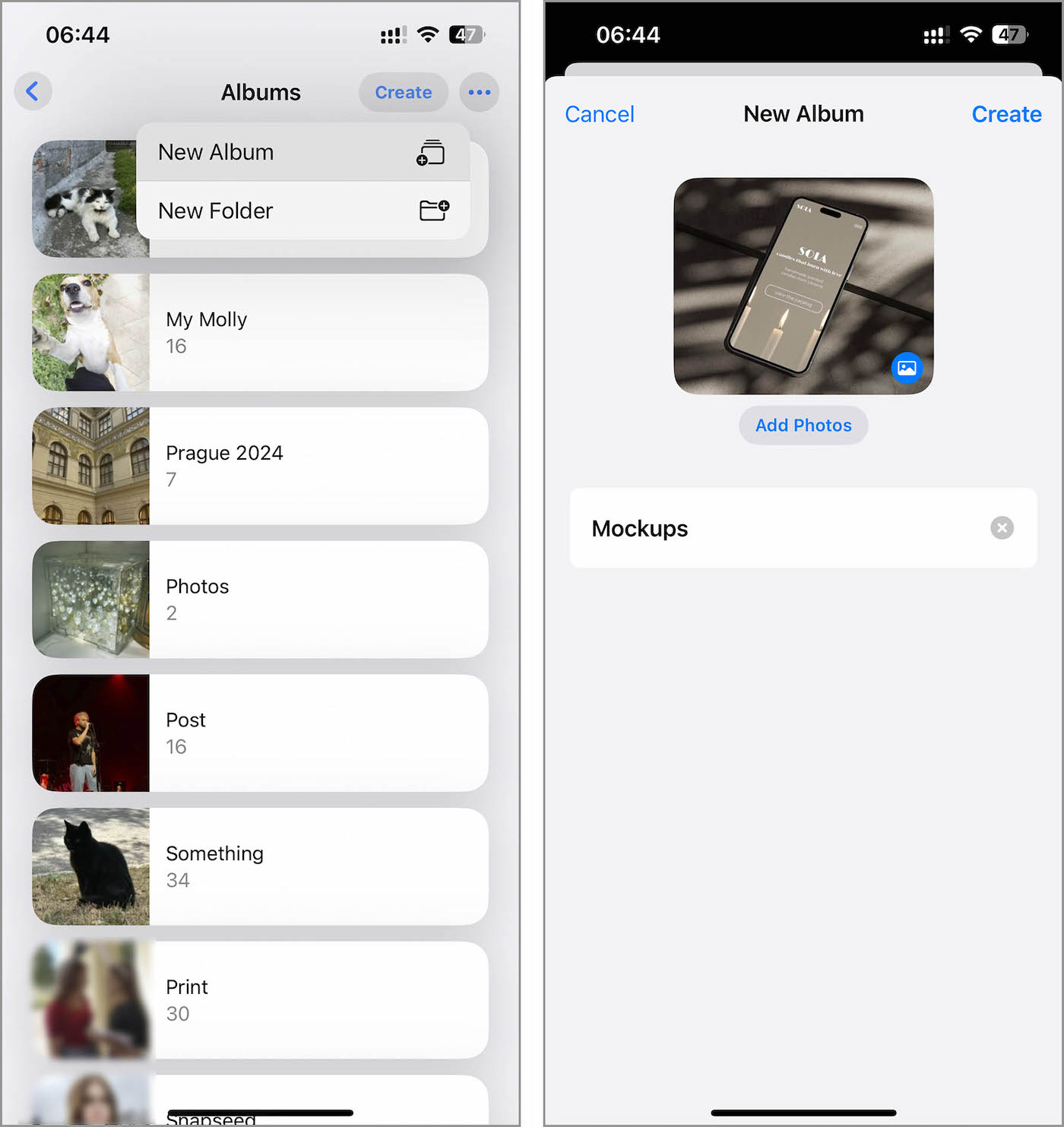
Once your photo gallery only holds the images you actually need, whether you cleaned it up manually or used a cleaning app, it’s a good time to get organized. The Photos app organizes things into categories like screenshots, bursts, and Live Photos, but that might not be enough for your workflow. Try creating your own albums based on what makes sense to you. For example, you could have folders like ‘Clients,’ ‘Textures,’ ‘Mockups,’ or ‘UI Ideas.” Organize it in a way that fits your workflow and makes things easier to find later.
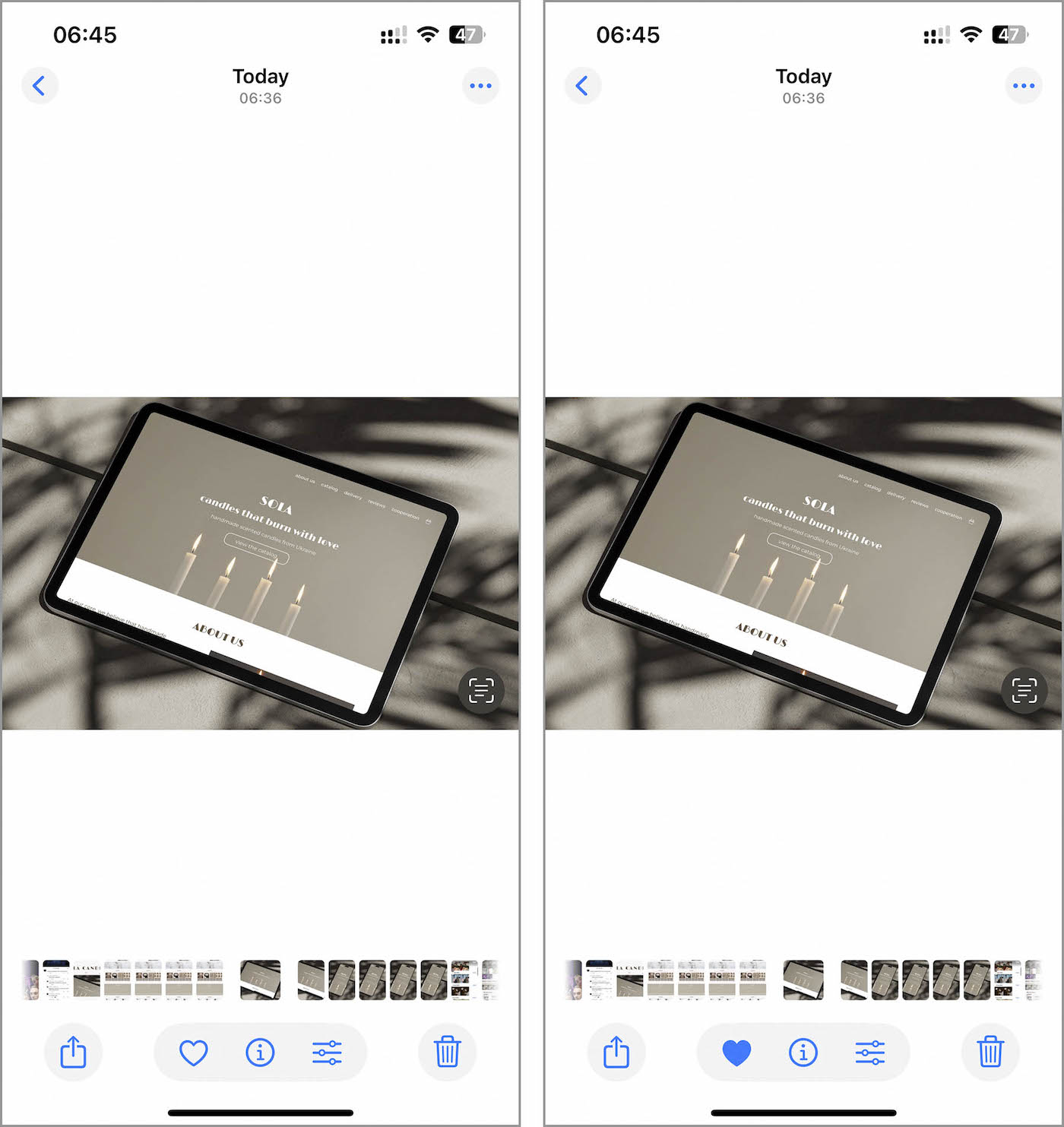
If your custom albums start to feel confusing, use Favorites to flag your top shots. Just don’t favorite everything (or that album will get as crowded as Recents). Instead, star images at key moments: before uploading to an app, moving them to your computer, or posting on Behance or Dribbble. That way, your go-to images stay right at your fingertips.
Tidy Up Your Files App
The Files app may not hold as many items as Photos, but it covers a wider range of content, including photos, videos, documents, PDFs, archives, and more. To get your design files in order, start just like you did with photos – delete anything you don’t need. That could be accidental downloads or outdated files, like an old order or a completed project you’ve already moved into your portfolio.
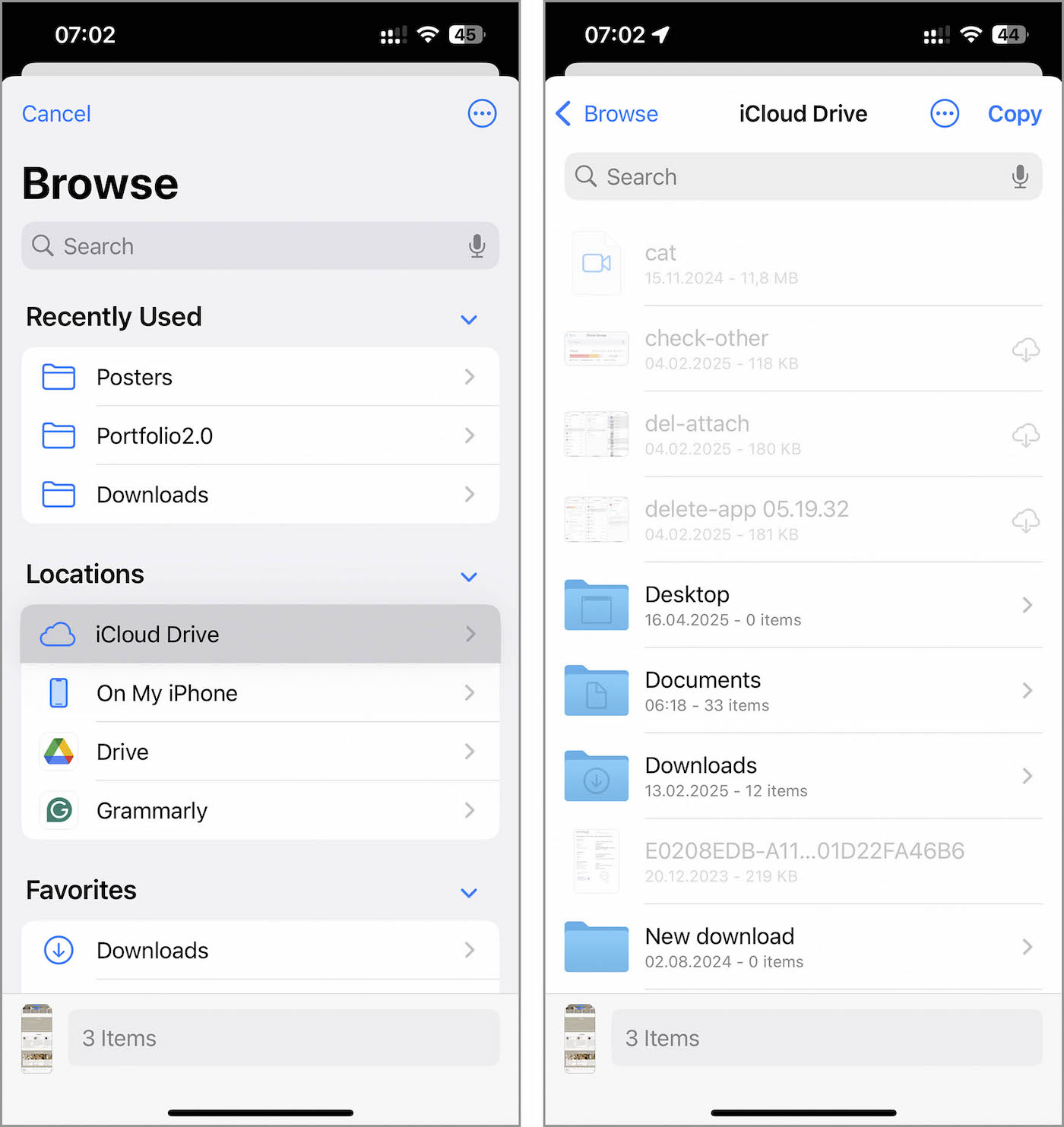
If you hesitate to delete files from the Files app, consider an alternative: transfer them from local storage to iCloud servers. Just watch your iCloud space, as free accounts only get 5 GB, and hefty Figma or Photoshop files can quickly consume it. If you need more storage, upgrade to iCloud+ (50 GB costs $0.99 per month).
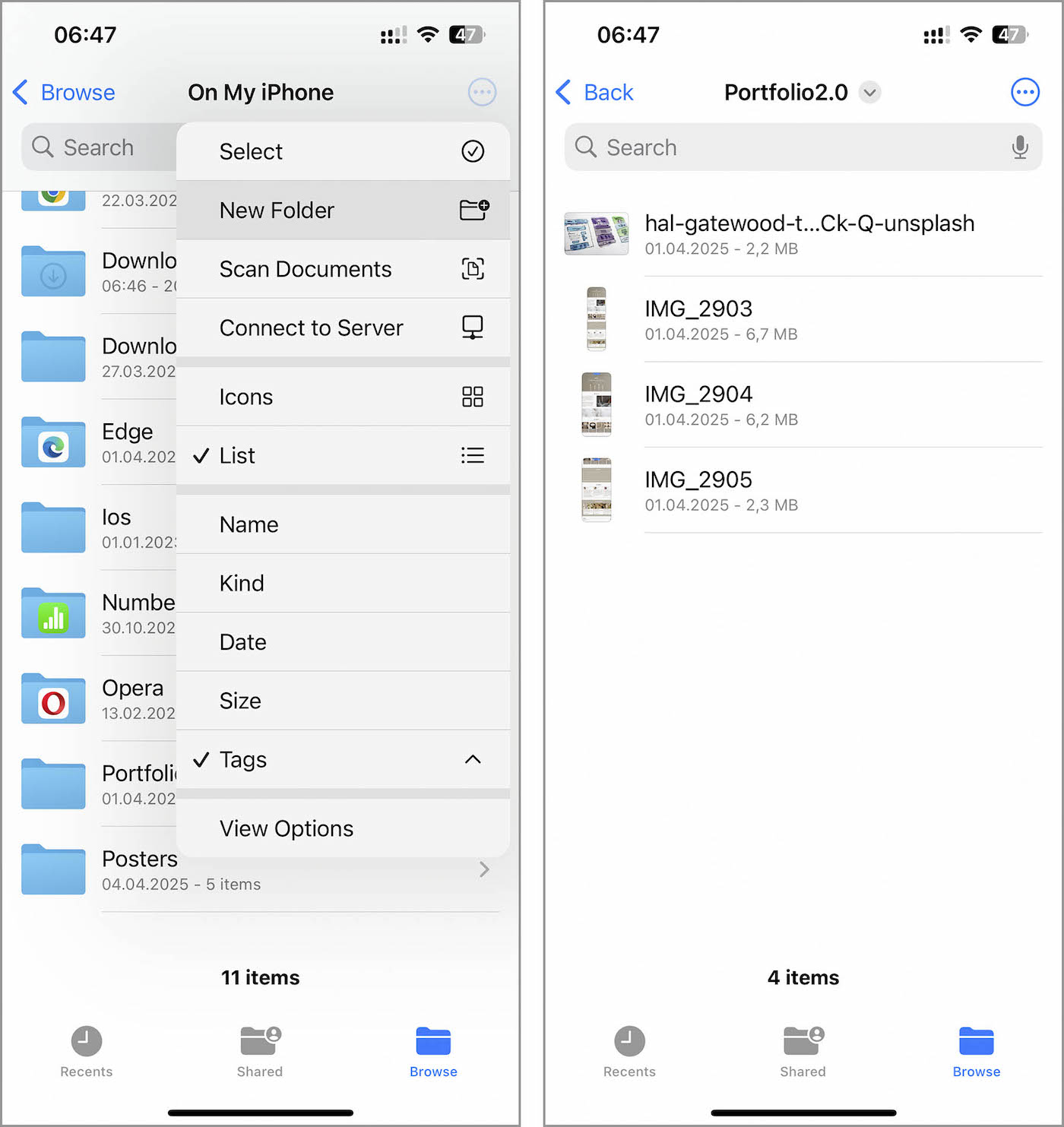
After sorting out irrelevant files, organize the necessary ones into separate folders for easier access. These files typically download into default locations, which can make them hard to find. Create folders based on a logical principle (such as project name or file type).
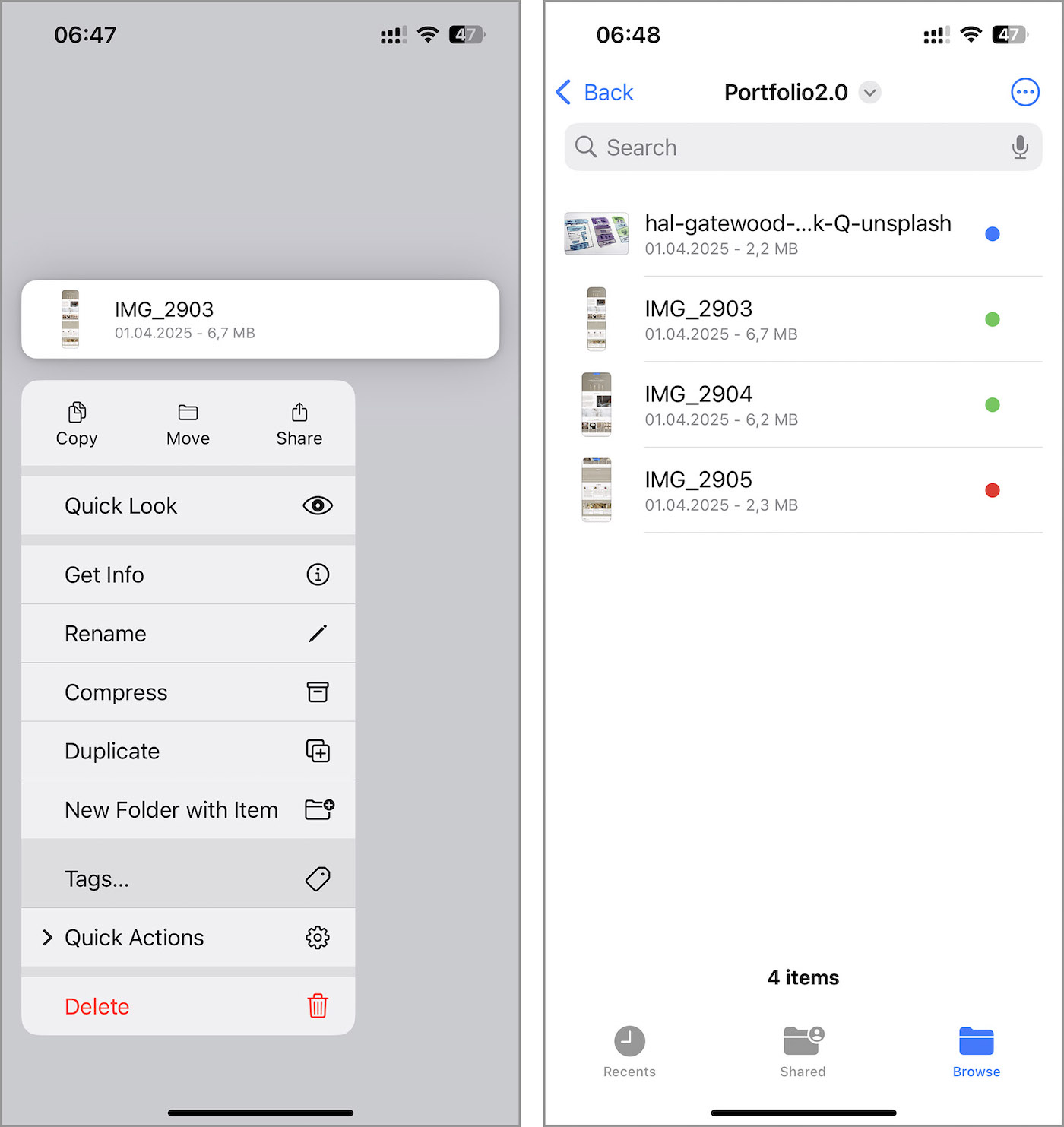
To take your folder organization a step further, try using color tags for your files. For example, mark projects on hold in red, ones waiting for client feedback in yellow, finished files in green, and font files in purple. Just keep in mind that your iPhone won’t track what each color means, so you’ll need to remember what each color signifies to avoid confusion.
Quick tip for next time: try to avoid storing large files in the Files app. Since you’ll probably edit them on your computer anyway, there’s not much point in storing them locally on your iPhone. If you need to keep them for a bit, consider saving them as PDF or ZIP files, as they are easier to store and share much faster.
Declutter Your App Library
We all download apps we barely use, and designers are no exception, especially if you’re still figuring out your style. You’ve probably tried a bunch of tools for templates, photo or video editing (if you’re into motion design), or font recognition and creation. Take a look at how many of those apps are just sitting there. It’s probably more than you need. If you want to free up space and clean up your home screen, start by deleting the ones you rarely open.
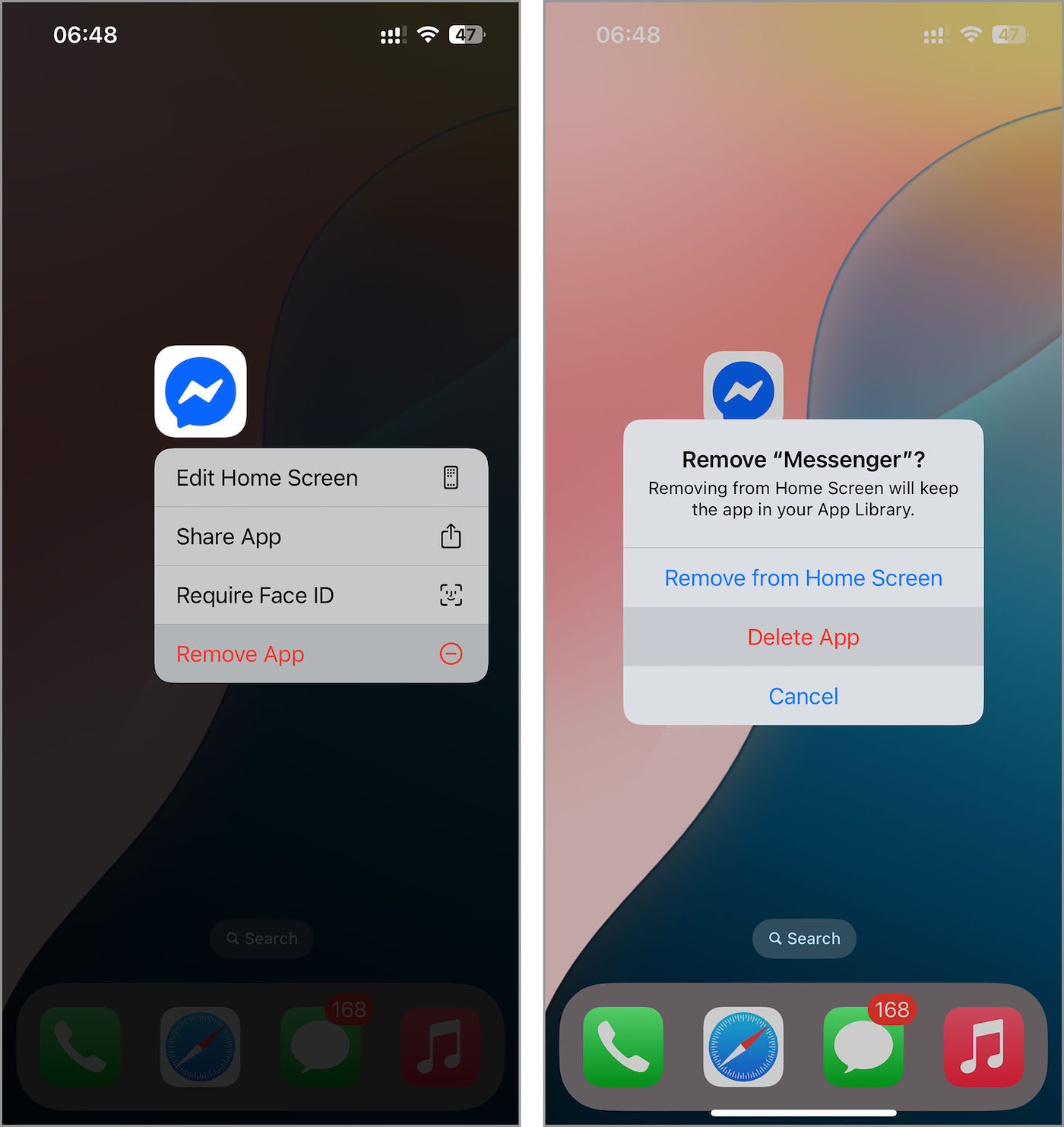
If you’re more focused on tidying up your home screen than deleting apps completely, try removing them from the home screen instead. This way, they stay in your App Library but don’t clutter up your main view. When you manage apps, tap Remove from Home Screen instead of Delete App.
Just like with your photos and files, you can sort apps into folders so similar ones stay together. For example, stash all your photo-editing tools in one folder and group your messaging and social apps in another.
Conclusion
Now you know how to free up space on your iPhone and keep your design files and apps organized. And while we didn’t list a ton of tips, you don’t need to use them all. If you barely use the Files app but your photo gallery is a mess, focus on that, or vice versa. It’s all about what works for you. You’re in control, so use these methods in a way that fits your workflow.
We also want to highlight the importance of keeping your apps and iOS up to date. When both run the latest versions, they work together smoothly. Running a new app on an older iOS release can result in slowdowns or glitches. So check for updates in Settings and the App Store regularly to keep your iPhone performing at its best.
Finally, if your browser lags when you search references on Behance or any other service, clear its cache. Caches speed up loading, but if you never clean them out, your browser stores data from past sessions, and that can slow things down. Once you clear the cache, your browser should run without hiccups.