Recover Photos Instantly On Windows [With or Without Backup]
Worried about accidentally deleted important photos from your Windows PC? Don’t lose hope. Whether your photos are deleted due to accidental error, system failure, software bugs, or any other reason, they are recoverable in almost all cases. Losing photos from any device – including hard drives, USB drives, or external storage devices – can put you in trouble.
The good news is that there are several photo recovery methods available online which you can try to recover deleted photos on Windows PCs. This guide will walk you through different methods on how to recover photos instantly on your Windows PC, with or without backup. Whether you are a casual user or tech-savvy, these approaches can recover deleted photos from Windows PC. So, let’s begin with the recovery workarounds!
Common Reasons for Photo Loss on Windows
Losing photos on Windows occurs due to several reasons. Identifying the exact cause will help you choose the right recovery workaround. Below are some common causes for photo deletion on your device:
Accidental Deletion: One of the main causes for photo loss on Windows PCs is accidental deletion, i.e., when your photos are deleted while performing other tasks on the device.
Emptied Recycle Bin: Emptying the Recycle Bin folder permanently removes the file from your device. If the photos are removed from this folder, recovery may be complex for you.
Formatting Drives: When you format any storage devices, including SD cards, it wipes out all their content, including your photos.
Virus or Malware Attacks: Malicious programs like viruses and malware, when they attack your device, can delete, encrypt, or corrupt photo files.
Software or System Crashes: Unexpected crashing of your Windows PC while saving or transferring files can lead to loss.
How do I Recover Deleted Photos on Windows? [With Backups]
If you have a backup of your lost photo, recovery can be very easy. In this part of the blog, we’ve outlined simple methods that you can follow to recover deleted photos on Windows with backups:
Method 01: Check the Recycle Bin Folder
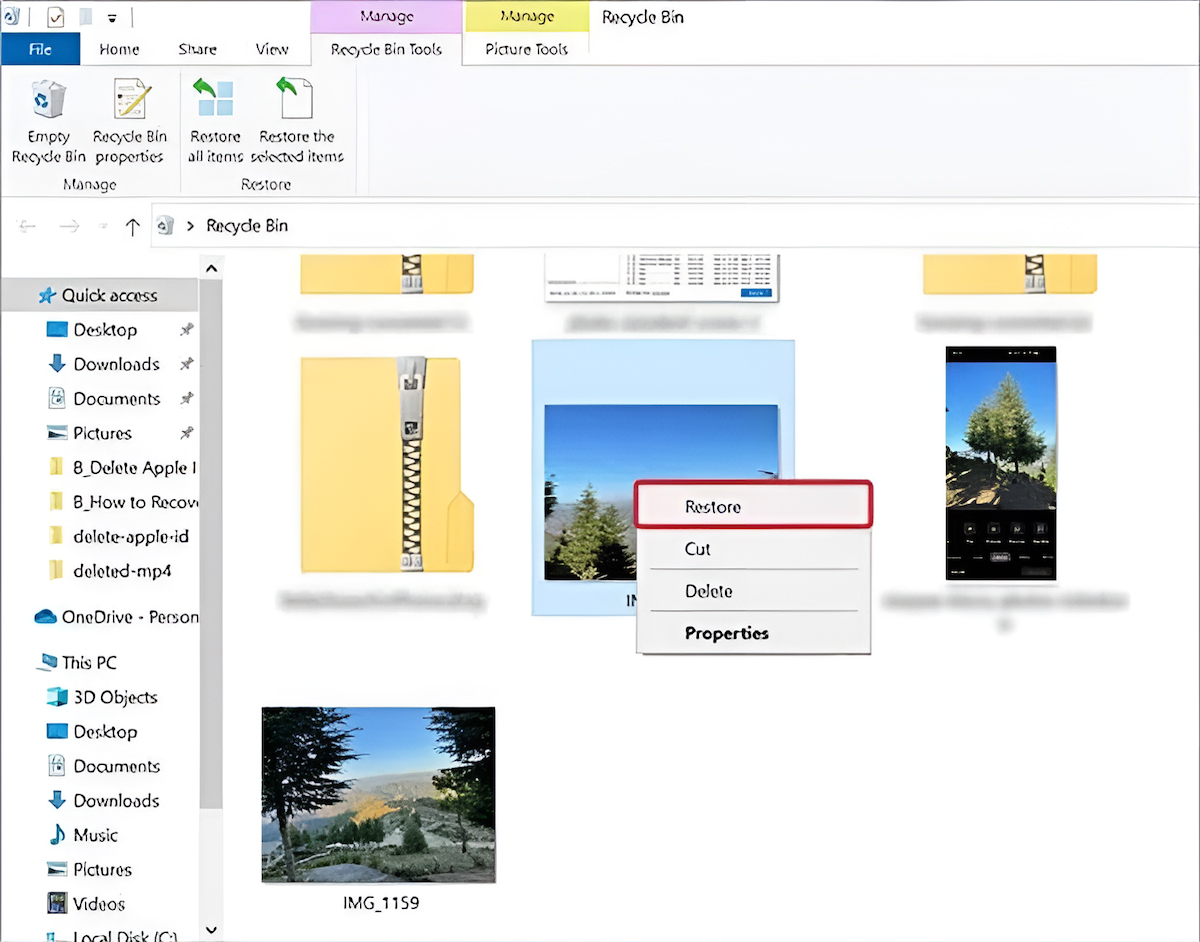
Before diving into backups, it’s important to check the Recycle Bin folder. Every deleted file on your Windows PC goes to the Recycle Bin folder before getting permanently removed. Here’s how you can check and recover deleted photos from the Recycle Bin:
Firstly, open the Recycle Bin from your desktop.
Browse through the folder to locate the deleted photos that you need to restore.
Right-click on the photo and select the Restore option from the context menu.
Method 02: Restore Photos Using Previous Versions
If your deleted photo is not present in the Recycle Bin, then you might have permanently erased it. In such cases, you can check any previously created backups. Windows OS provides built-in File History and restore version utility, which allows you to roll back lost files to the available previous version.
Follow the below steps to recover lost photos on Windows using Previous Versions:
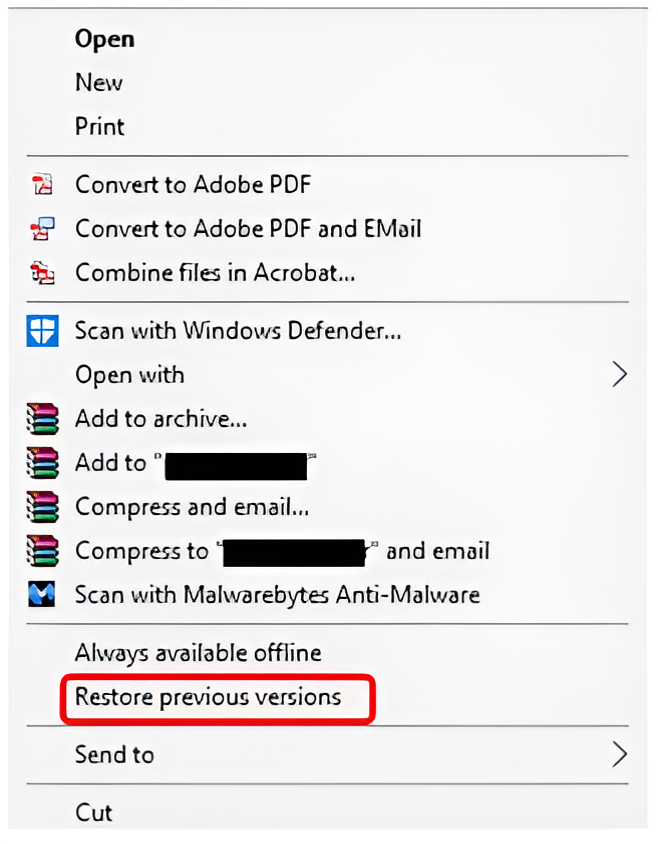
Go to the folder where your deleted photo was earlier stored.
Right-click on that folder and choose Restore previous versions.
Navigate to the Previous Versions tab and browse through different backups of your deleted photos. Select the backup version you need to restore.
Click Restore > Apply, then tap OK to conclude the process.
Method 03: Recover Photos from OneDrive or Cloud Backups
Along with your device’s built-in File History backup utility, you can use cloud backup tools such as OneDrive, Google Drive, etc., to restore lost files. If you’ve synced your device with cloud backups, follow the below steps to recover your photos (here we are recovering photos from OneDrive):
Open OneDrive folder on your Windows PC or go to onedrive.live.com.
Browse Pictures or the Recycle Bin folder within OneDrive.
Download or restore lost images to your device.
To recover from Google Drive, you have to:
Log in to the web app to access your Google Drive synced account.
Locate the deleted photos from the photos folder or the trash.
Click the Download or Restore button (when the required photo is found).
What if You Don’t Have Any Backup? [Recover Using Third-Party Software]
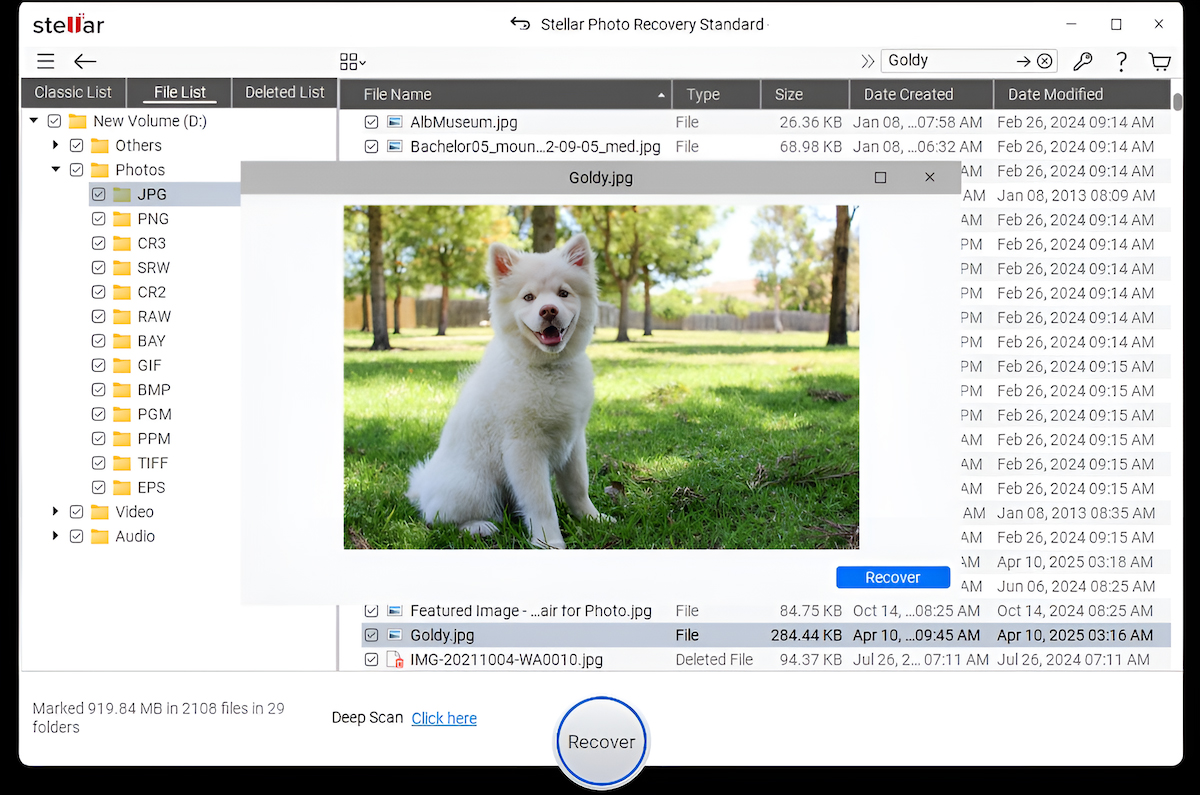
If there’s no backup and your deleted photo is not in the Recycle Bin folder, you can use a third-party photo recovery software for Windows. Tools like Stellar Photo Recovery can help you restore deleted photos from various storage devices, including SD cards, USB drives, and hard disks. This all-in-one photo recovery software completely scans your device to find deleted or inaccessible files and recovers them in just a few simple clicks.
Whether your photos are deleted due to accidental deletion, device formatting, or any other reason, the Stellar Photo Recovery software can help you in every scenario. Here are some key features which make Stellar the perfect choice for your photo recovery:
Multiple File Type Recovery: Not only photos, you can use this software to recover deleted video and audio files of multiple file formats.
Advanced Scanning Algorithm: This tool uses an advanced scanning algorithm to locate your deleted photos, even from severely damaged storage.
Wide Photo Format Support: It allows you to recover deleted photos of various file formats, including RAW formats from popular DSLR brands like Canon, Nikon, Sony, and more.
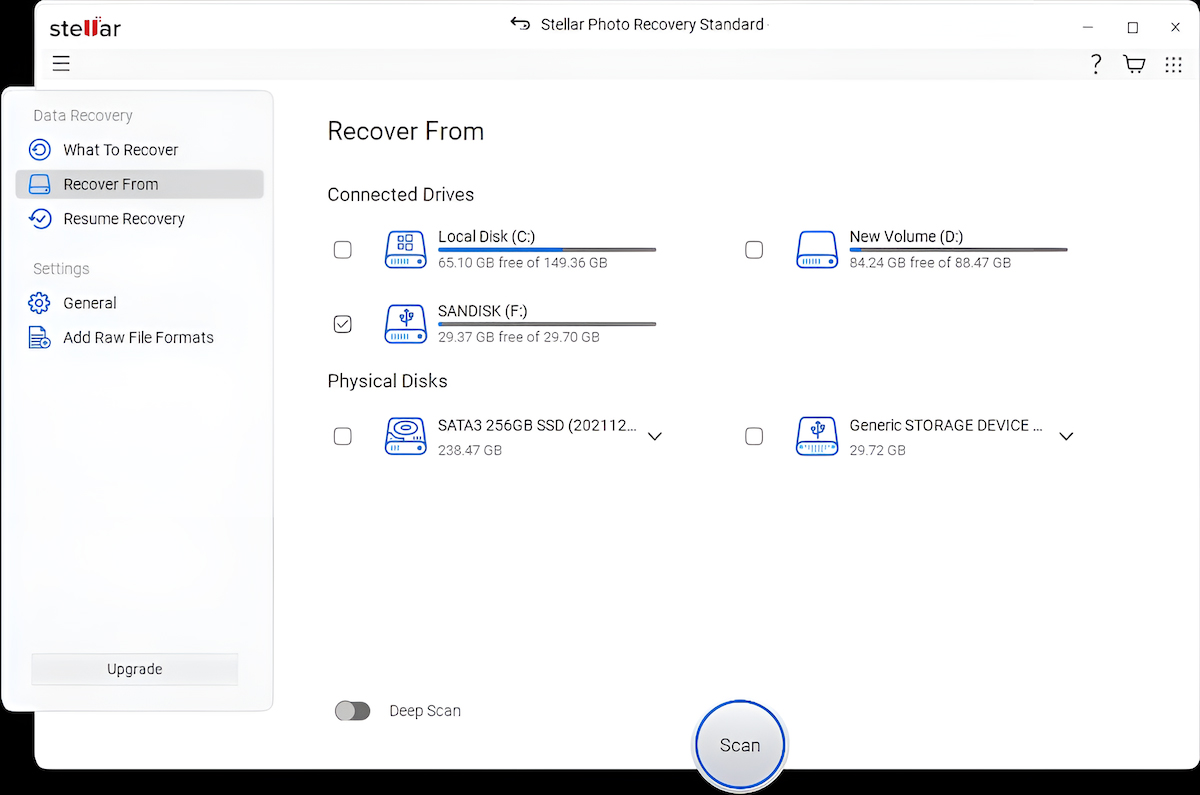
Deep Scan Option: If the quick scan fails to provide you desired photo recovery result, you can perform a deep scan for exhaustive sector-by-sector analysis of your storage device to find hidden or lost data.
Safe and Secure Tool: When it comes to the safety of your data, Stellar always remains number one. It offers 100% safe and secure tools.
How to recover lost photos using the Stellar Photo Recovery software:
The tools offer a 3-step simple recovery process. You can follow the below steps to recover your lost photos using this user-friendly tool:
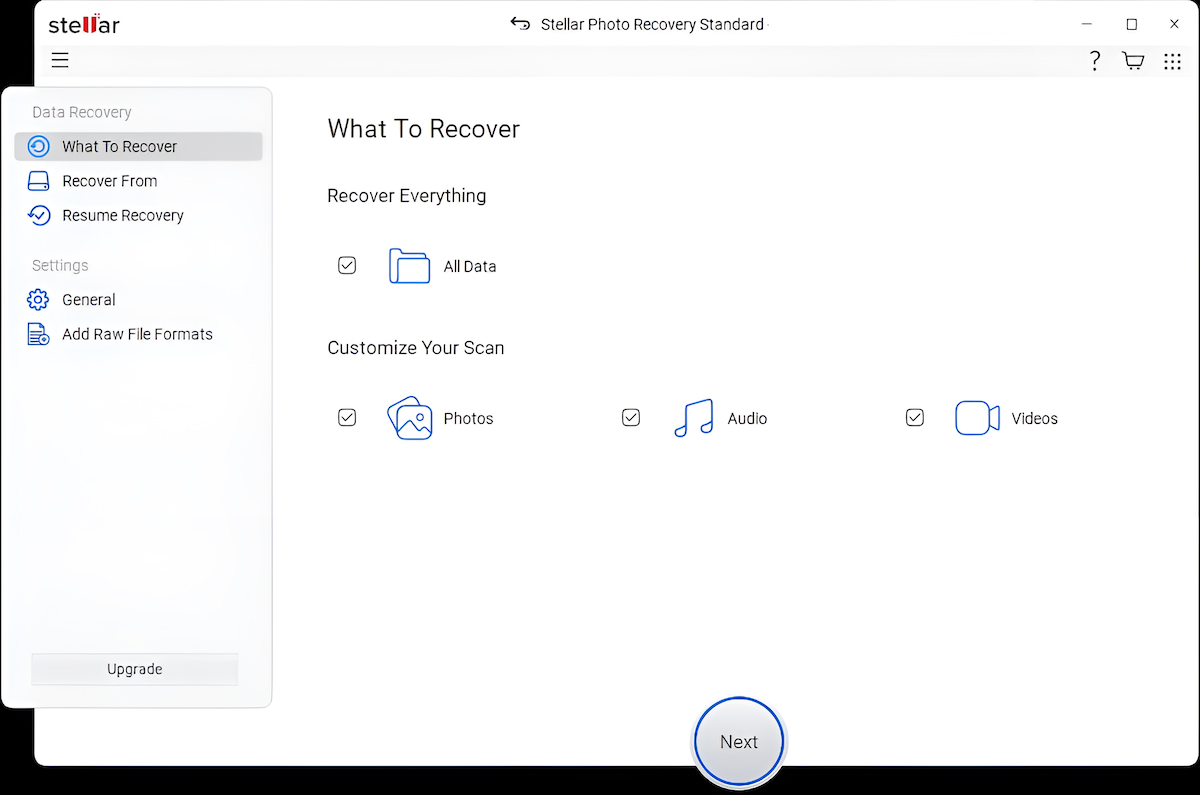
Step 1: Download and install the Stellar Photo Recovery tool from its official website. Launch the software and from the homepage, select the file type you need to restore. To recover photos, select Photos and click Next.
Step 2: Now, click the Scan button to initiate the recovery process. The software will then allow you to preview the recoverable files. If not satisfied, you can opt for a “Deep Scan” after the initial results.
Step 3: Select the desired photos and click Recover to save them on your device. Save them to a different drive or folder from the original to prevent overwriting.
Tips for Successful Photo Recovery
Now that you are familiar with all the possible workarounds for deleted photo recovery on Windows, it’s time to check some additional tips. These tips will help you avoid sudden photo deletion instances on your device:
Avoid Delay: The sooner you attempt recovery, the better your chances for success.
Don’t Overwrite Deleted Photos: Pause all use of the storage device as soon as you discover the loss.
Use a Card Reader for Camera Memory Cards: This provides a more steady access and enough time to scan.
Use a Proven Photo Recovery Software Tool: Not all recovery software is equal. Use reliable software from companies like Stellar.
Conclusion
When you find any important photo missing from your device, don’t lose hope. Go with the aforementioned photo recovery methods one-by-one to recover your lost photos. If you have a backup of your lost photo, then check these available backups, else go with third-party photo recovery software. With a reliable recovery tool like Stellar Photo Recovery Standard, you can recover your deleted photos quickly and easily—even from formatted or corrupted drives.
Just remember, do not panic. Do not overwrite deleted photos. And don’t wait for too long. With the right steps and upgraded software, you can recover your photos with no backup.