How To Make Patient Education Videos With CapCut Editor And Its Voice Changer
Patient education videos play an important role in the health sector to enable people to access easy and understandable information regarding treatments, wellness habits, and medical studies. Due to the rise of telehealth and online resources, healthcare providers must have engaging content that develops trust and improves comprehension. The desktop editor provided by CapCut is a simple, professional-level tool that allows medical professionals to create compelling videos to make a connection with patients, even without the need to have advanced skill levels in editing.
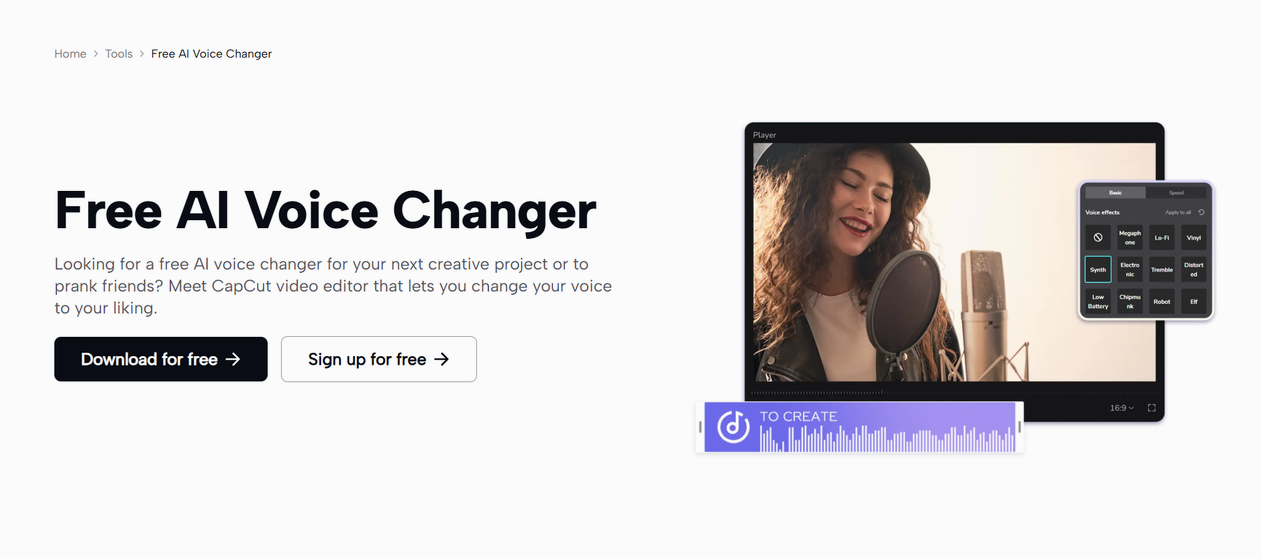
CapCut’s voice changer tool is a major feature for patient education, enabling creators to add effects such as a relaxing echo or authoritative and loud tones, making complicated medical information easier to understand and more interesting. The tool does not require expensive audio systems, hence making it clear and professional.
As digital healthcare communication grows, CapCut desktop simplifies the process of producing patient-centered content, both in bringing in visuals and producing finished work, to suit the needs of contemporary medical education.
Why Patient Education Videos Matter in Healthcare
Engaging Patients with Clear, Relatable Audio
CapCut helps healthcare providers to adjust voiceovers to patient needs, by making voiceovers soft and soothing when the information is sensitive, or high-pitched and straight when teaching. This personalized audio enhances trust and patient understanding, leading to better compliance with medical advice.
Streamlining Content Creation for Busy Professionals
Healthcare providers are usually on tight schedules, and efficiency becomes the most crucial point. The user-friendly interface of CapCut helps speed up video compilation and audio level modification, enabling practitioners to create high-quality educational material within a limited timeline, which can then be delivered to patients on time.
Leveraging AI for Effective Patient Education
Simplifying Video Production with Smart Tools
These sophisticated learning features, with the help of AI, make advanced editing available, allowing healthcare providers to concentrate on content rather than technical challenges. The video editing software has accurate timeline controls and overlays, which guarantee the smooth integration of visuals and audio to professional patient videos.
Customizing Content for Diverse Patient Needs
The artificial intelligence solutions of CapCut can be used to customize videos to diverse audiences, such as older patients who require explicit explanations and younger customers who enjoy active content. Such flexibility boosts the level of engagement, as the content will be easily relatable to all demographics and increase health literacy.
Easy Steps to Create Patient Education Videos with CapCut Desktop
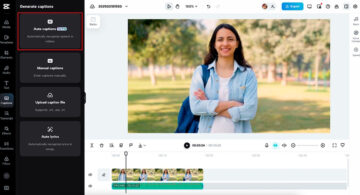
Creating professional patient education videos is easy when using CapCut desktop. These steps will help you write informative and engaging content. Each step will include notes and simulated screenshots that highlight important parts of the interface, such as buttons and panels.
Step 1: Set Up Your Project
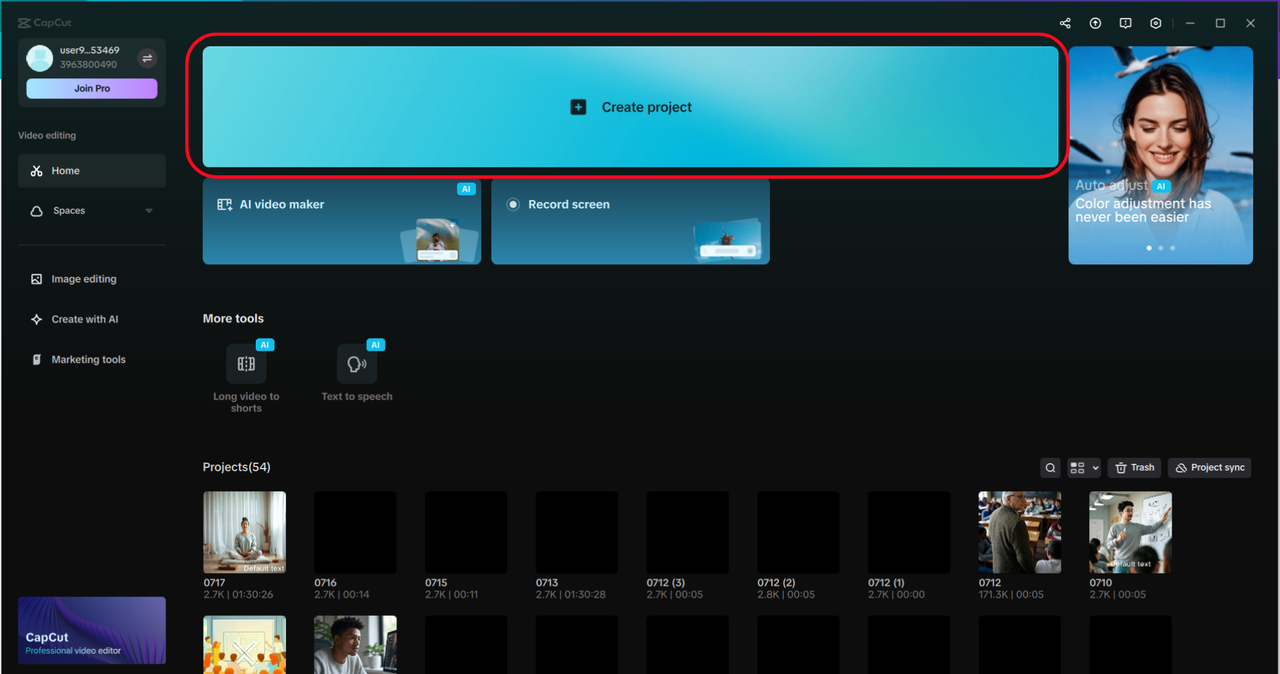
Download the CapCut Desktop Video Editor from the official website. Open the software and select the “Create project” option to open up a blank workspace where you will create a patient education video. The design is intuitive and makes it easy for medical personnel to use.
Step 2: Import and Organize Media
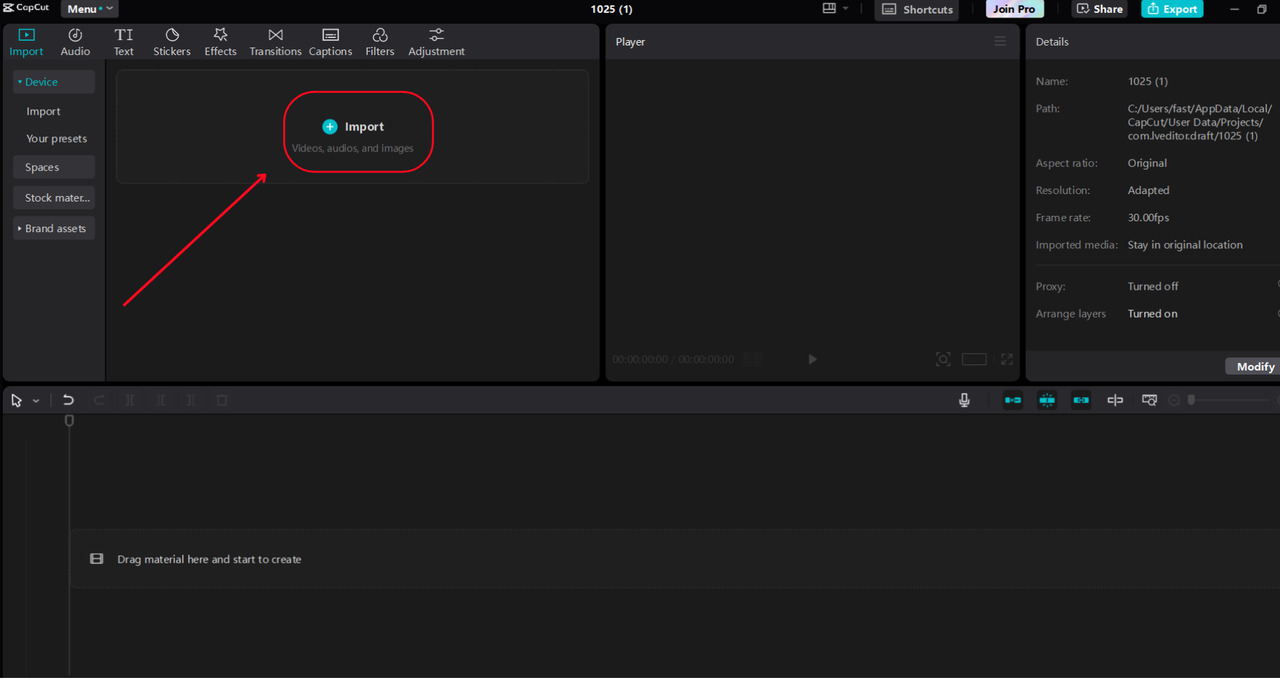
To add video clips, pictures or audio files, click “Import” in the media panel. Drag them onto the timeline in your desired sequence. CapCut allows layering of multiple tracks, making it possible to overlay footage and educational visuals seamlessly.
Step 3: Apply and Customize with the Voice Changer
To make your patient education video narration more engaging, CapCut Desktop has an in-built Voice Changer tool. After you have either recorded or imported your audio, drag the audio into the audio track of the timeline. At the top of the interface, go to ‘Audio’. In the left menu, select ‘Sound Effects’, then choose any sound you need from the ‘Trending’ list.
Next, select the audio clip and view its settings in the right-hand panel. Click “Voice Changer” to see the available presets. The voice changer offers different presets such as Echo, Mic Echo, High, Low, Full Voice, Bass Boost and Music Enhancer, among others. You can tap any of them to hear how your narration will sound.
Step 4: Export Your Video
Once editing is complete, click ‘Export’ in the upper-right corner and choose the resolution, format, and location. CapCut provides high-quality output that can be used on websites, such as a hospital webpage or a patient portal, both online and in clinics.
Improving Videos with Visual Aids
Although CapCut desktop is suitable for video editing, refined images can help patients better understand the content. CapCut also offers an online photo editor with AI-based capabilities such as color correction and background removal to create clear medical diagrams, infographics, or thumbnails. Export pictures to a photo editor and into CapCut to add professional-grade graphics that help explain complicated data.
CapCut’s Strengths for Patient Education Content
CapCut desktop would be in its element in medical environments where voice modulation presets are available to give patients the ability to improve audio based on their needs instantly. It provides unlimited tracks to stack over finer pictures, smooth incorporation of edited photos, support of cloud-based services in collaborative works, and simple effects such as fades in order to ease the transition. Although these functions apply to other industries, they work best in creating easy-to-understand and interesting patient education videos.
Conclusion
Creating patient education videos with CapCut desktop allows healthcare providers to develop transparent and trustworthy content to promote patient understanding. CapCut makes achieving professional results easier by combining audio customization with practical editing tools. Begin the exploration of CapCut today in order to transform your patient education efforts and create better relationships.