4 Easy Ways To Improve Your Logo Design Workflow With insMind
Designing logos can sometimes feel slow and complicated, especially when you are trying to meet deadlines or come up with fresh ideas. Many designers spend much time switching between tools to adjust small details. This can make the logo design workflow longer than it needs to be, even for experienced creators. Thankfully, AI-powered tools like insMind make everything faster and easier without losing creativity or quality.
With options for customizable templates and smart editing tools, insMind helps you save time and work more smoothly. This guide will show you 4 easy ways to improve your logo design workflow using insMind’s AI Logo Generator and its various other features.
Part 1. Get Logo Ideas Fast with insMind’s AI Logo Generator
As discussed above, insMind’s AI Logo Generator is an advanced and quick solution to create professional logos for businesses. The advanced image generation model of insMind lets you create these amazing logos only by entering specific keywords. To ensure it provides you with exactly what you want, you can enter particular details like your company’s slogan and its establishing date. Consequently, you get a logo that reflects your brand’s values and USP.
Furthermore, it provides you with various results so you can choose the one that best suits your needs. You can also change the results if they don’t follow your standards. Once you find the AI logo creator to be useful, you can improve it further through the Edit feature. This feature takes you to a different workspace where you can change its background or resize it, among various other customizations.
Part 2. Explore Colors with the Logo Color Changer
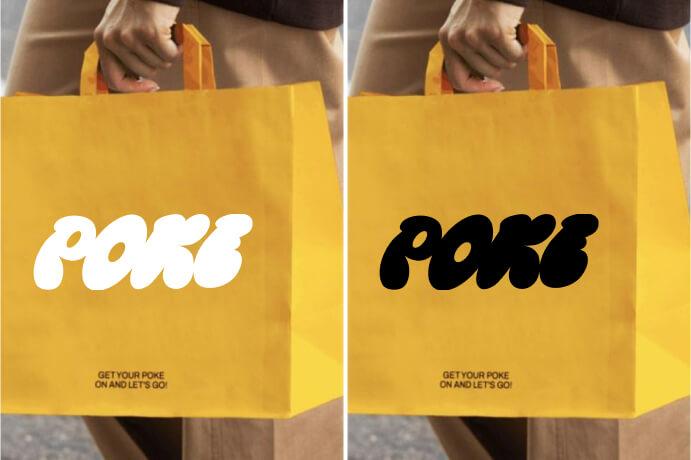
In addition to creating an AI generated logo, you use other features of insMind to customize it further. Especially, the AI Logo Color Changer feature lets users change the logo colors to match their brand’s theme. It comes with many color gradients and custom palettes to create on-brand variations without manual editing. Furthermore, you can add filters or use the AI Replace feature to change the elements in the logo.
Users are also allowed to remove undesired things from the logo using the AI Magic Eraser feature. The insMind AI Shadows tool helps you add realistic shadows to your logo, making it blend naturally into different backgrounds and look more professional across product displays or branding materials. To highlight essential things in the logo, insMind has also introduced a Magnifier tool with which you can expand certain things in the images.
Part 3. Make It Transparent with Background Remover
When the background doesn’t match your brand’s aesthetics, you can use the background remover feature after creating the logo with this AI logo maker. The Logo Background Remover feature of insMind enables removing the backdrop from your logos and adding custom background colors. In addition, this logo background remover allows adding custom photos as the new backdrop to make them more appealing.
Once the background is removed, insMind ensures the logo edges stay clean and sharp, maintaining high image quality without losing important details. You can easily export logos as transparent PNGs for flexible use across websites, packaging, social media, and promotional materials. Whether you want a plain background, a brand-specific color, or a customized setting, insMind gives you full control to adapt your logo to different marketing needs.
Part 4. Improve Clarity with the AI Enhance
You can also improve the quality of the logo using the AI Logo Enhancer feature of insMind if it drops during the editing process. With this AI-powered feature, you can simultaneously upload up to 30 logos and improve their quality. Similarly, it provides you with options like HD to enhance the quality of the blurry logos.
After the quality is increased with this image quality enhancer, you can further edit the logo to make it look more professional. For this, you can add filters or different backgrounds to the logo. You can also compare the quality of the uploaded lower-quality logo and the final results to see how much has changed. With all these AI features together, it becomes easy to create and customize your logos professionally.
Wrapping Up
To conclude, while creating logos manually is a time-consuming and expensive task, insMind’s various features make it simple. With the AI Logo Generator feature of insMind, you can give your brand an identity.
Other than that, it’s background remover and logo enhancer features make it easier to make the logos look even more professional. Therefore, you should try insMind today to ensure your brand gets a premium logo without costing anything.