• Home
  • Design
  • Advertising
  • Inspiration
  • Tools
  • Buzz
  • Follow Us ▾
    • Facebook
    • Facebook Group
    • LinkedIn
    • LinkedIn Group
    • Threads
    • Instagram
    • Pinterest
    • Twitter / X

Digital Synopsis

Design, Advertising & Creative Inspiration

  • Photoshop
  • Logo Design
  • UI/UX
  • AI
  • Web Design
  • Typography
  • Photography
  • About Us
  • Advertise

How To Move Body Parts In Photoshop And Change Poses Like A Pro

The Puppet Warp tool is a powerful Photoshop feature that lets you add a visual mesh to distort specific areas of an image, while leaving other areas intact, with the help of anchor points that act like hinges. This gives you the ability to edit and move body parts in photos, change poses, edit facial expressions, reposition hair, create animations, and more.

But if you try to apply the Puppet Warp aimlessly, you can end up with deformed movements, breakage, and distortions. Photoshop instructor Unmesh Dinda from PiXimperfect has come up with an excellent tutorial that shares useful techniques to avoid these common issues.

Here’s a 20-second clip that provides a preview.


Watch the complete tutorial

In this in-depth tutorial, Unmesh shows you how to separate the subject from the background, make advanced movements, and use hidden features of the Puppet Warp tool. Learn how to fix common issues like deformations, prevent weird cuts, remove artifacts, and deal with repeat patterns and marks.

00:00 – Problems with Puppet Warp
00:24 – Easy separation
02:48 – Clean up for high-quality result
04:14 – Make it automatic
05:17 – Important settings to prevent weird cuts
06:02 – Rotation technique
08:12 – Advantage of clean work
08:24 – Background expansion
08:52 – Quick recap

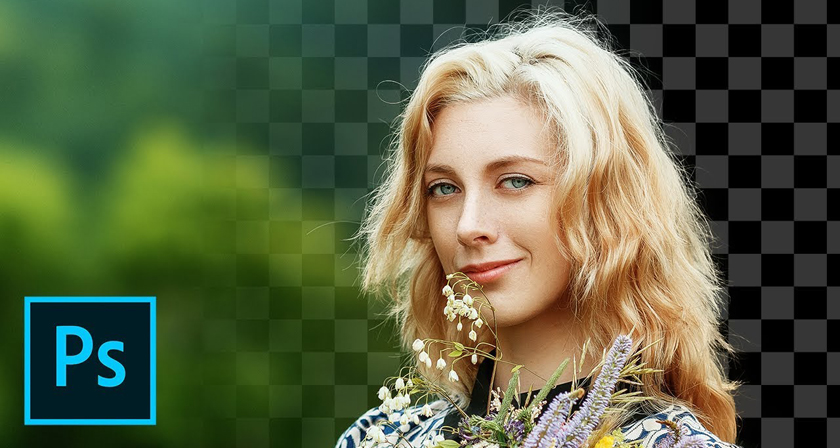
Download sample image shown in video.

Learn More Photoshop …

Share this post with a designer friend and voice your views in the comments below.

Don't Miss:

  • change-color-of-anything-in-photoshop
    Learn In One Minute How To Change The Color Of Anything In Photoshop
  • photoshop-background-eraser-tool
    This Hidden Tool In Photoshop Lets You Remove Backgrounds With Ease
  • photoshop-curvature-pen-tool
    Photoshop's New Pen Tool Will Make It Easier For You To Draw Curves
  • how-to-add-pattern-to-clothes-in-photoshop
    How To Add Any Pattern To Clothes In Photoshop
  • how-to-remove-object-from-image-in-photoshop
    Learn In 15 Seconds How To Remove Any Object From Your Image In Photoshop
  • photoshop-crop-and-straighten-photos
    This Hidden Photoshop Feature Lets You Crop And Straighten Multiple Photos In Just 1 Click

Share Your Views:

Comments for this post are now closed.
Share your thoughts with 433,000+ design lovers on our Facebook Page.

Popular

  • Graphic Designer Fixes The 9 Worst Logos Ever
  • 50 Incredibly Creative Logos With Hidden Meanings
  • 11 Best And Worst Redesigns Of Famous Logos
  • Top 10 Netflix Documentaries For Graphic Designers
  • 11 Differences Between Designers And Clients

TRENDING

  • Top 20 Graphic Design Trends For 2026
  • Top 10 Logo Design Trends For 2026 And How To Use Them
  • Portfolios Of Designers Who Have Worked At Apple, Google, Meta, And More
  • Designers Are Sharing Their Redesigns Of Famous Logos And Some Of Them Are Better Than The Original
  • “Which Current Graphic Design Trend Will Age Badly?” – Here Are The Top Replies

Follow Us On

  • Facebook
  • Facebook Group
  • LinkedIn
  • LinkedIn Group
  • Threads
  • Instagram
  • Pinterest
  • X / Twitter

Copyright © 2012-2026 Digital Synopsis | Privacy Policy | Affiliate Disclosure | Advertise With Us