• Home
  • Design
  • Advertising
  • Inspiration
  • Tools
  • Buzz
  • Follow Us ▾
    • Facebook
    • Facebook Group
    • LinkedIn
    • LinkedIn Group
    • Threads
    • Instagram
    • Pinterest
    • Twitter / X

Digital Synopsis

Design, Advertising & Creative Inspiration

  • Photoshop
  • Logo Design
  • UI/UX
  • AI
  • Web Design
  • Typography
  • Photography
  • About Us
  • Advertise

How To Use Photoshop’s “Generative Fill” AI Tool, The Biggest Game Changer In The Design Industry

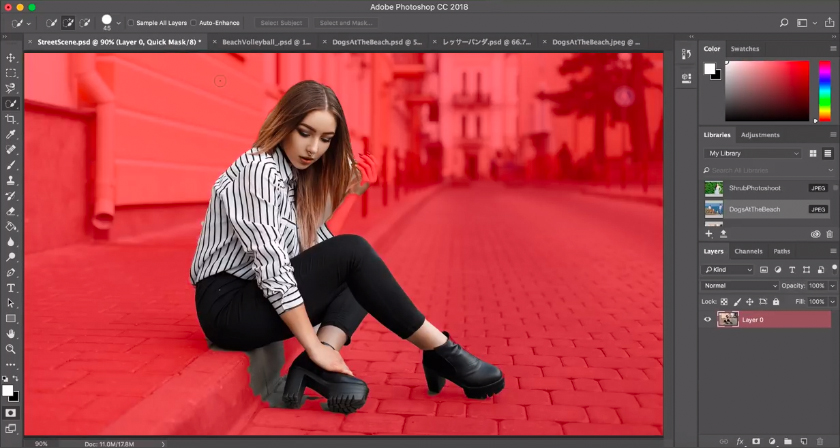
Adobe’s Generative Fill in Photoshop (beta) is a revolutionary step forward in creative and design workflows. This innovative feature, serving as a ‘co-pilot’ for users, is powered by Adobe Firefly, the company’s suite of creative generative AI models. Subscribers of Photoshop can conjure up spectacular imagery using just a simple text prompt.

The incorporation of this tool symbolizes the convergence of two titans of the imaging world – Photoshop and generative AI. This integration allows users to generate content from within Photoshop by just typing in a text prompt, and then utilize the extensive array of Photoshop’s tools to edit it, thereby producing extraordinary results. With this leap forward, the creative possibilities have been stretched to new horizons.

Watch it in action below

https://digitalsynopsis.com/wp-content/uploads/2023/05/adobe-firefly-generative-ai-in-photoshop.mp4

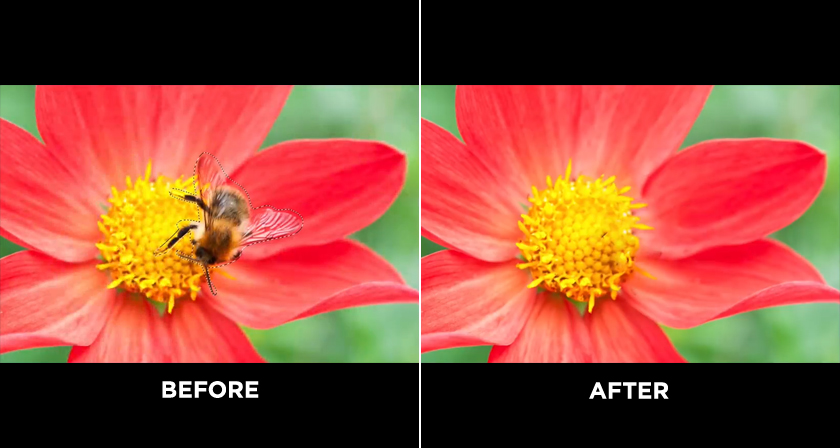
Generative Fill introduces a practical and efficient way of manipulating images non-destructively. The tool uses straightforward text prompts, allows users to add, extend, or remove content from their images, producing impressively realistic outcomes within seconds.

Adobe Firefly Generative AI in Photoshop - Example 1
Image via Adobe

Generative Fill adds further value by its ability to automatically adapt to the perspective, lighting, and style of the user’s image. This eliminates previously laborious tasks, making them swift and simple. As a result, users can look forward to surprisingly effective and aesthetically pleasing images, making Generative Fill a truly valuable tool in the realm of digital image editing.

GET THE NEW FEATURE IN PHOTOSHOP →

How to use Generative Fill in Photoshop

Generative Fill has been incorporated into every selection tool in Photoshop, creating a novel “Generative Layer”. This facilitates non-destructive work processes while exploring the boundless potential of this state-of-the-art technology.

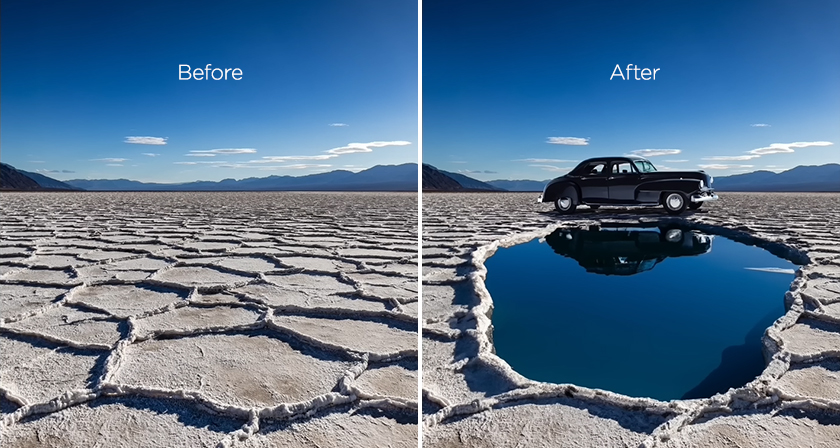
Adobe Firefly Generative AI in Photoshop - Example 2
Generate: “Classic car from the 50s”
“Reflection pool filled with blue water”

In this tutorial, Russell Preston Brown, Senior Creative Director at Adobe Systems, takes you through the basics of the Generative Fill tool and shows you how to use text prompts to enhance and add elements to your images in Photoshop.

Adobe believes that generative AI carries immense power for Photoshop’s creative users, and is excited to begin integrating this game-changing capability into the product from today onwards. The initial step involves a comprehensive rethinking of selections and layers. The company eagerly awaits to see the creative ways in which users will leverage this new feature.

Photoshop experts try out Generative Fill

1. PiXimperfect


2. Photoshop Training Channel


3. PHLEARN


4. Will Patterson


Additional reading:
• Adobe News Release
• Adobe Blog Post
• Adobe Help – How to use Generative Fill

GET THE NEW FEATURE IN PHOTOSHOP →

Share this post with a designer friend and voice your views in the comments below.

Don't Miss:

  • photoshop-generative-ai-features-25-9
    Adobe Introduces Supercharged Photoshop With Incredible New AI Features
  • adobe-project-fast-fill
    Incredible New Tool From Adobe Lets You Add Or Remove Objects In VIDEOS Using The Power Of…
  • photoshop-generative-ai-nike-ad
    Graphic Designer Turns 350-Year-Old Painting Into A Nike Ad Within Seconds With Photoshop…
  • adobe-firefly-creative-generative-ai
    Adobe Firefly Is A Revolutionary AI Model That Will Change The Way You Design
  • photoshop-new-content-aware-fill
    Photoshop's New, More Powerful ‘Content-Aware Fill’ Can Realistically Remove Any Object From…
  • adobe-photoshop-select-subject-tool
    Photoshop's New 'Select Subject' Tool Lets You Select People And Objects In Just One Click

Share Your Views:

Comments for this post are now closed.
Share your thoughts with 433,000+ design lovers on our Facebook Page.

Popular

  • Graphic Designer Fixes The 9 Worst Logos Ever
  • 50 Incredibly Creative Logos With Hidden Meanings
  • 11 Best And Worst Redesigns Of Famous Logos
  • Top 10 Netflix Documentaries For Graphic Designers
  • 11 Differences Between Designers And Clients

TRENDING

  • Top 20 Graphic Design Trends For 2026
  • Top 10 Logo Design Trends For 2026 And How To Use Them
  • Portfolios Of Designers Who Have Worked At Apple, Google, Meta, And More
  • Designers Are Sharing Their Redesigns Of Famous Logos And Some Of Them Are Better Than The Original
  • “Which Current Graphic Design Trend Will Age Badly?” – Here Are The Top Replies

Follow Us On

  • Facebook
  • Facebook Group
  • LinkedIn
  • LinkedIn Group
  • Threads
  • Instagram
  • Pinterest
  • X / Twitter

Copyright © 2012-2026 Digital Synopsis | Privacy Policy | Affiliate Disclosure | Advertise With Us