• Home
  • Design
  • Advertising
  • Inspiration
  • Tools
  • Buzz
  • Follow Us ▾
    • Facebook
    • Facebook Group
    • LinkedIn
    • LinkedIn Group
    • Threads
    • Instagram
    • Pinterest
    • Twitter / X

Digital Synopsis

Design, Advertising & Creative Inspiration

  • Photoshop
  • Logo Design
  • UI/UX
  • AI
  • Web Design
  • Typography
  • Photography
  • About Us
  • Advertise

Photoshop’s Incredible New “Remove Tool” Is The Future Of Image Editing

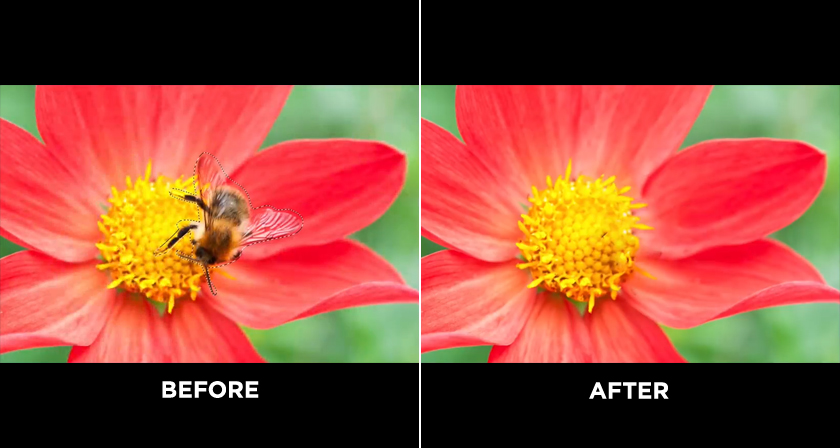
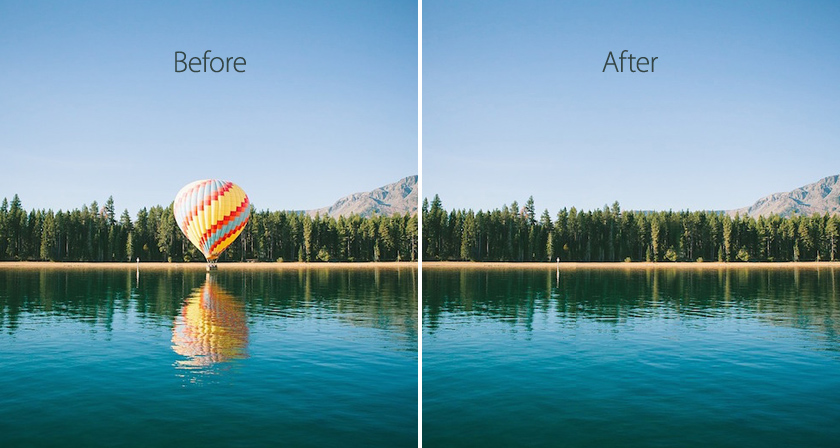
Photoshop has introduced a revolutionary new tool that greatly simplifies the removal of complex and intricate objects from your photos. The “Remove Tool” effortlessly replaces portions of your image with suitable and realistic content, allowing you to eliminate any distracting areas or components, regardless of their size.

Just glide this AI-powered tool over objects and individuals to make them vanish as though they never existed. Even complex backgrounds and structures, like fences or edges, are flawlessly filled in.

New Remove Tool in Photoshop can remove any complex object in no time.
Image via Adobe

The tool is currently available in the Beta version of Photoshop (Desktop), which can be downloaded via the Creative Cloud Application. Once you have installed Photoshop Beta, the Remove Tool can be found in the Healing Brush Tool Group.

Watch it in action

In this tutorial, Photoshop instructor Unmesh Dinda from PiXimperfect, examines the new Remove Tool in various situations and contrasts it with other tools and features such as Content-Aware Fill. Additionally, he explores the tool’s ability to fix artifacts and perform clean-ups after the fill.

00:00 – Comparison with other tools
01:52 – How to get the tool?
02:19 – Removing extreme objects
02:47 – Fences and nets
03:04 – Features and settings
04:14 – Cleaning up the fill
05:26 – Objects behind nets
06:43 – Drawbacks and workaround
08:29 – Thoughts and conclusion

More tutorials

1. Photoshop Training Channel


2. PhotoshopCAFE


3. Glyn Dewis


4. Christian Möhrle – The Phlog Photography

Learn More Photoshop …

Share this post with a designer friend and voice your views in the comments below.

Don't Miss:

  • photoshop-remove-unwanted-objects-content-aware-fill
    This Powerful Photoshop Trick Lets You Remove Unwanted Objects In Just 3 Simple Steps
  • photoshop-background-eraser-tool
    This Hidden Tool In Photoshop Lets You Remove Backgrounds With Ease
  • adobe-photoshop-select-subject-feature
    Testing Photoshop's New 'Select Subject' Tool That Lets You Select Objects In Just One Click
  • adobe-photoshop-select-subject-tool
    Photoshop's New 'Select Subject' Tool Lets You Select People And Objects In Just One Click
  • photoshop-new-content-aware-fill
    Photoshop's New, More Powerful ‘Content-Aware Fill’ Can Realistically Remove Any Object From…
  • adobe-project-fast-fill
    Incredible New Tool From Adobe Lets You Add Or Remove Objects In VIDEOS Using The Power Of…

Share Your Views:

Comments for this post are now closed.
Share your thoughts with 433,000+ design lovers on our Facebook Page.

Popular

  • Graphic Designer Fixes The 9 Worst Logos Ever
  • 50 Incredibly Creative Logos With Hidden Meanings
  • 11 Best And Worst Redesigns Of Famous Logos
  • Top 10 Netflix Documentaries For Graphic Designers
  • 11 Differences Between Designers And Clients

TRENDING

  • Top 20 Graphic Design Trends For 2026
  • Top 10 Logo Design Trends For 2026 And How To Use Them
  • Portfolios Of Designers Who Have Worked At Apple, Google, Meta, And More
  • Designers Are Sharing Their Redesigns Of Famous Logos And Some Of Them Are Better Than The Original
  • “Which Current Graphic Design Trend Will Age Badly?” – Here Are The Top Replies

Follow Us On

  • Facebook
  • Facebook Group
  • LinkedIn
  • LinkedIn Group
  • Threads
  • Instagram
  • Pinterest
  • X / Twitter

Copyright © 2012-2026 Digital Synopsis | Privacy Policy | Affiliate Disclosure | Advertise With Us