• Home
  • Design
  • Advertising
  • Inspiration
  • Tools
  • Buzz
  • Follow Us ▾
    • Facebook
    • Facebook Group
    • LinkedIn
    • LinkedIn Group
    • Threads
    • Instagram
    • Pinterest
    • Twitter / X

Digital Synopsis

Design, Advertising & Creative Inspiration

  • Photoshop
  • Logo Design
  • UI/UX
  • AI
  • Web Design
  • Typography
  • Photography
  • About Us
  • Advertise

How To Master Shadows, Lighting And Create A Perfect Composite In Photoshop

One of the most difficult tasks in Photoshop is to merge objects from multiple images that have different colors, shadows, and lighting, into one single composite and make it look realistic. This is one of the key differences between the work of a professional designer and an amateur.

Photoshop instructor Unmesh Dinda from PiXimperfect has come up with an extensive tutorial that shows you how to create realistic shadows and match the lighting while compositing in Photoshop. You will learn how to paint, color, and blur shadows with realism.

Unmesh also shows you how to match the colors, ambient light, and sunlight of the background with the subject using curves and blend modes. Watch below.

00:00 – Extracting vs. Painting Shadows
01:11 – Downloads and Resources
01:20 – Getting the Composite Ready
04:18 – Creating the Shadow
11:04 – Coloring the Shadow
13:45 – Get the Right Blur
15:44 – Don’t Forget the Ground!
17:24 – Contact Point Shadow
20:21 – Add Little Darkness From the Shadows
21:53 – Matching Ambient Light
22:54 – Matching Brightness
24:16 – Adding Additional Warmth
25:45 – A Small Correction
26:21 – The See-Through Shadow
27:42 – Enhancing Shadows on the Subject
29:27 – Darkening Subject Shadows to Add Dimension
30:47 – Final Adjustment!
31:51 – Oops! Don’t Miss This Tiny Matching Factor!
32:57 – Recap
34:52 – Outro
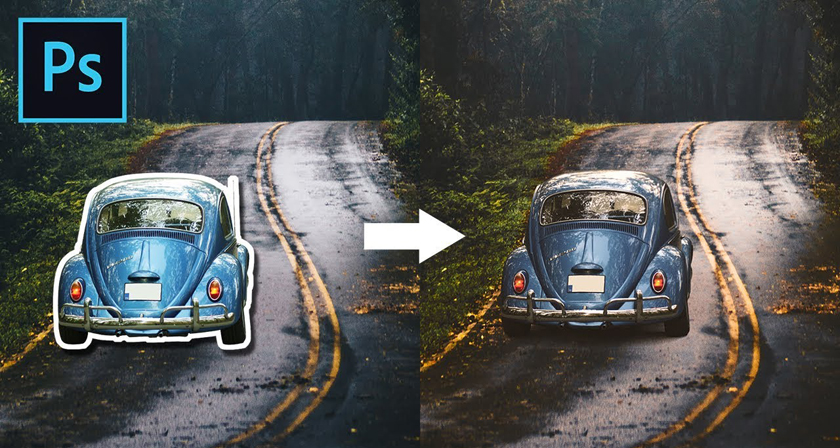
Download sample image shown in video.

Learn More Photoshop …

Share this post with a designer friend and voice your views in the comments below.

Don't Miss:

  • how-to-blend-and-composite-images-in-photoshop
    How To Blend Images Seamlessly And Create A Perfect Composite In Photoshop
  • how-to-match-colors-in-photoshop
    How To Accurately Match Colors Of Two Different Objects In An Image In Photoshop
  • copy-color-and-tone-of-an-image-in-photoshop
    How To Copy Colors From An Image And Apply Them On Another Image In Photoshop
  • photoshop-crop-and-straighten-photos
    This Hidden Photoshop Feature Lets You Crop And Straighten Multiple Photos In Just 1 Click
  • how-to-add-pattern-to-clothes-in-photoshop
    How To Add Any Pattern To Clothes In Photoshop
  • how-to-create-seamless-backdrops-with-photoshop
    How To Create Flawless And Seamless Backdrops With Photoshop

Share Your Views:

Comments for this post are now closed.
Share your thoughts with 433,000+ design lovers on our Facebook Page.

Popular

  • Graphic Designer Fixes The 9 Worst Logos Ever
  • 50 Incredibly Creative Logos With Hidden Meanings
  • 11 Best And Worst Redesigns Of Famous Logos
  • Top 10 Netflix Documentaries For Graphic Designers
  • 11 Differences Between Designers And Clients

TRENDING

  • Top 20 Graphic Design Trends For 2026
  • Top 10 Logo Design Trends For 2026 And How To Use Them
  • Portfolios Of Designers Who Have Worked At Apple, Google, Meta, And More
  • Designers Are Sharing Their Redesigns Of Famous Logos And Some Of Them Are Better Than The Original
  • “Which Current Graphic Design Trend Will Age Badly?” – Here Are The Top Replies

Follow Us On

  • Facebook
  • Facebook Group
  • LinkedIn
  • LinkedIn Group
  • Threads
  • Instagram
  • Pinterest
  • X / Twitter

Copyright © 2012-2026 Digital Synopsis | Privacy Policy | Affiliate Disclosure | Advertise With Us