A great presentation is not just about what you say. It is also about how clearly your audience can see and understand your message. Research in communication and cognitive psychology shows that visuals have a big impact on how well people comprehend, remember, and stay engaged. If your slides are poorly designed, even strong ideas can get lost. On the other hand, good design can turn simple concepts into memorable insights.
Whether you are working on a business pitch, an academic lecture, a training session, or a conference keynote, it is important to understand the basics of graphic design. These principles are not just about making slides look nice. They are about making your message clear and effective.
In this blog, we will look at the key graphic design principles every presentation should follow and share practical tips for using them.
Graphic Design Principles for Presentations
1. Clarity Above Everything Else

Clarity means your slide should be easy to understand right away.
Slides aren’t supposed to be like a book or a full report. They should support what you say, not replace you.
If a slide has too much text or confusing visuals, people will stop listening and start reading instead. This makes your presentation less impactful.
How to keep your slides clear:
- Don’t cram multiple points into a single slide. Focus each slide on just one message.
- Skip long sentences. Use keywords or short phrases instead.
- Cut out extra words. If you can say something in five words instead of fifteen, use five.
- Images, charts, or icons should help make your point clear, not distract from it.
Example:
Instead of: “Our revenue increased significantly due to improved customer retention strategies implemented in Q2.”
Use: Revenue Growth from Customer Retention (Q2)
You can then explain the full idea while you talk.
The main goal is for your audience to listen to you, not struggle to read your slides.
2. Visual Hierarchy Guides Attention
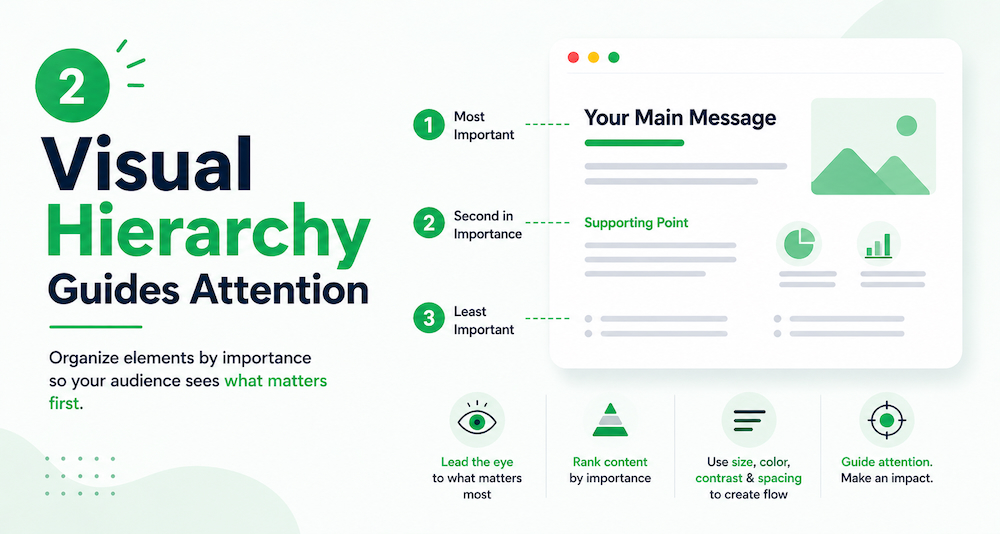
Visual hierarchy means arranging your content so the most important parts stand out first.
If everything is the same size or style, your audience won’t know where to look, and their attention will wander.
Hierarchy fixes this by creating a natural order for the eyes to follow.
How to create a good visual hierarchy:
- Make your titles big. Keep the details in smaller text.
- Highlight only the keywords, not everything.
- Use contrast. Dark and light colors, or big and small elements, help guide people’s attention.
- Place important information at the top or in the center of your slide.
- Leave an empty space between sections so each part is easy to see.
3. Keep It Simple (Simplicity Wins)

Many people make the mistake of adding too much text to slides.
Simple does not mean less information. It means removing anything that is not useful.
How to keep slides simple:
- Use short lines (about 6–10 words).
- Remove extra or fancy design elements.
- Don’t use too many bullet points.
- Focus on one idea per slide.
Remember, a simple slide is not boring—it is clear and powerful.
4. Consistency Builds Professionalism
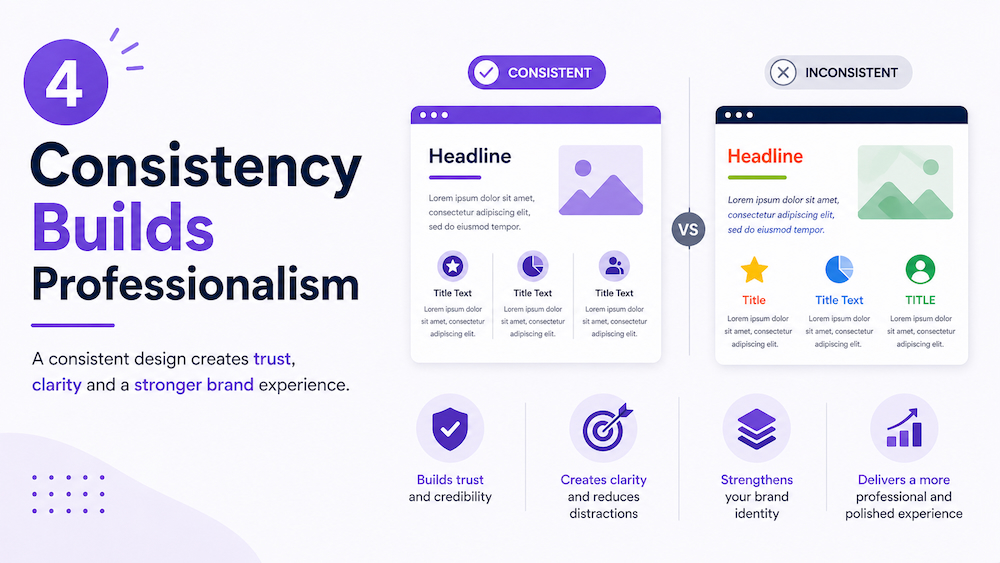
Inconsistent fonts, colors, or layouts make a presentation feel cluttered, disorganized, and unprofessional. It can confuse the audience.
Keep fonts (use only 1–2 styles), colors, spacing, slide layout, icons, and images consistent.
When everything looks uniform and organized, your presentation feels more professional. Consistency creates visual harmony that keeps your audience concentrated on the content rather than on adjusting to changing styles.
It also shows that your work is planned and thoughtful.
5. Typography Is More Important Than You Might Realize
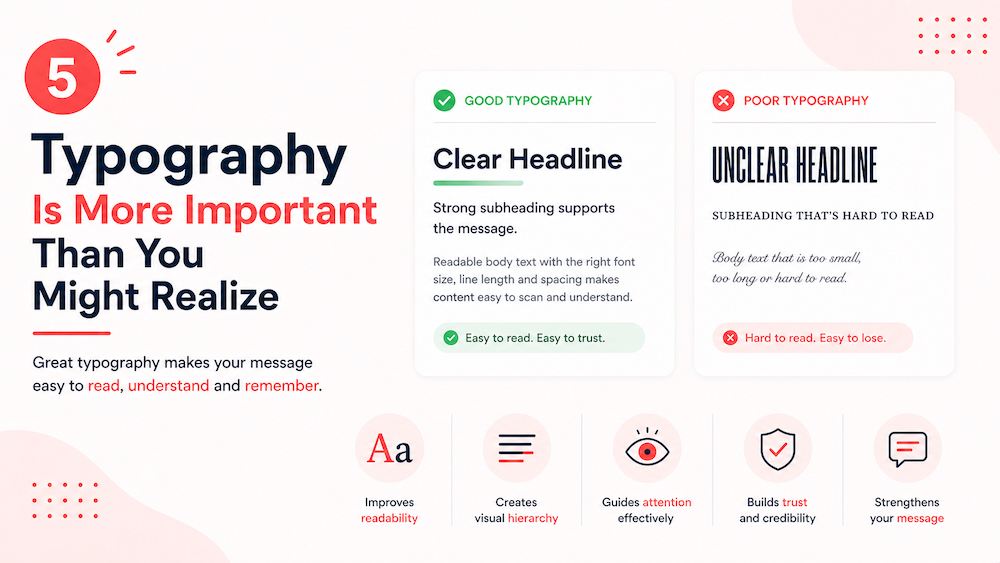
Typography is about more than choosing a font. It shapes how easy your content is to read, the mood it creates, and how your information is organized.
If your typography is not well chosen, even great content can be difficult to read.
Best practices:
- Choose sans-serif fonts like Arial, Helvetica, or Inter for your presentations.
- Stay away from decorative fonts when writing body text.
- Make sure your text stands out clearly from the background.
- Keep your font size large enough to read easily—24 points or more is a good rule for body text.
- Use different font weights and sizes to show which information is most important.
- Try not to use all capital letters too much, since it can make your text harder to read.
Remember, good typography improves understanding without drawing attention to itself.
6. Color Should Be Functional, Not Decorative
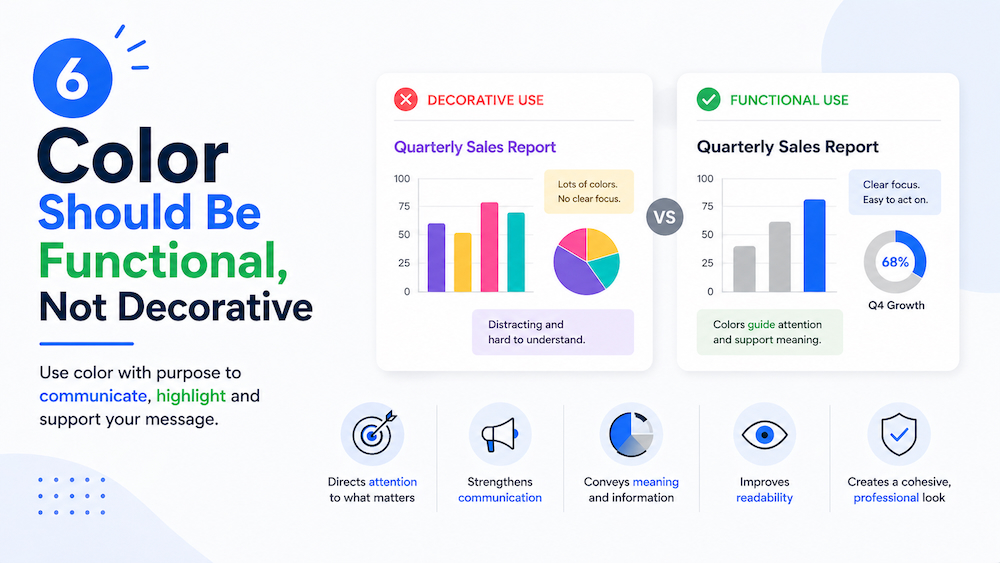
Color isn’t just for making slides look pretty—it should help people understand your message.
Think of color like a highlighter. If you highlight everything, nothing stands out. But if you highlight only important parts, it becomes useful.
- Use only a few main colors (2–4 is enough).
- Use color to draw attention to key points (like important numbers or headings).
- Make sure text is easy to read (dark text on light background works best).
- Keep meanings consistent (for example, red for problems, green for success).
If you use too many bright or random colors, your slide becomes confusing instead of helpful.
7. Alignment Creates Order
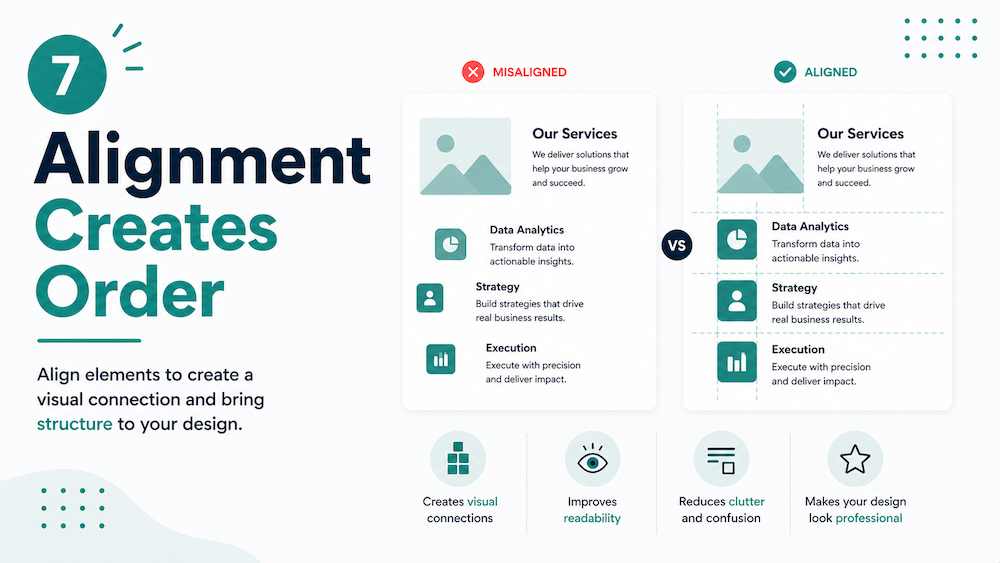
Alignment means placing things in a neat, organized way.
When everything lines up properly, your slide looks clean and professional. When things are slightly off, even by a little, it can feel messy without people knowing why.
- Keep text aligned (left alignment is usually easiest to read).
- Line up images and text so they follow a clear structure.
- Avoid placing items randomly around the slide.
8. Use White Space Intentionally
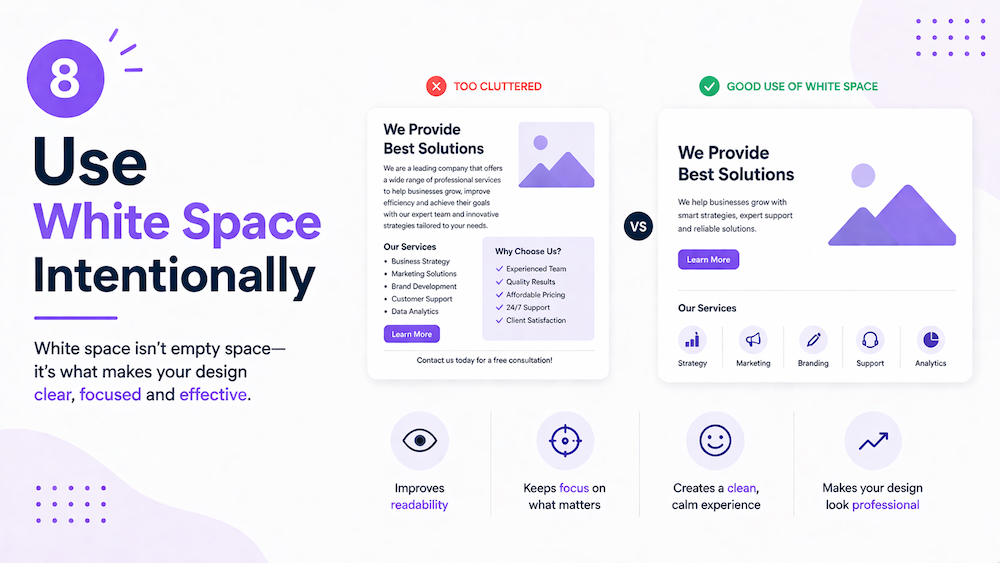
White space is the empty space around text and images. It’s not “wasted space”—it actually makes your presentation better.
If a slide is too crowded, people feel overwhelmed and don’t know where to look.
- White space makes content easier to read.
- It helps important points stand out.
- It gives the slide a clean and modern look.
Beginners often try to fill every inch of a slide. But good design is often about removing things that aren’t needed.
9. Imagery Should Support the Message

Images are helpful only when they add meaning to your slide.
If you use random or generic pictures, they just distract people rather than helping them understand.
- Choose images that match what you’re saying.
- Use clear, high-quality visuals (not blurry or stretched).
- Avoid overused stock images that feel fake or irrelevant.
- For complex ideas, use diagrams or simple illustrations.
- Don’t let images take over the slide—text should still be readable.
For example, if you’re talking about growth, showing a simple upward graph is better than just writing “growth.”
10. Data Visualization Should Be Clear and Honest

Charts and graphs are meant to make data easy to understand quickly.
If they are too complicated or misleading, they do the opposite.
- Pick the right chart (bar for comparison, line for trends, pie for parts of a whole).
- Keep it simple—don’t overload with too much data.
- Highlight the most important numbers.
- Label everything clearly (axes, values, titles).
- Use simple, consistent colors.
Most importantly, don’t change visuals just to make outcomes look better. Misleading charts break trust.
11. Contrast Improves Readability and Focus
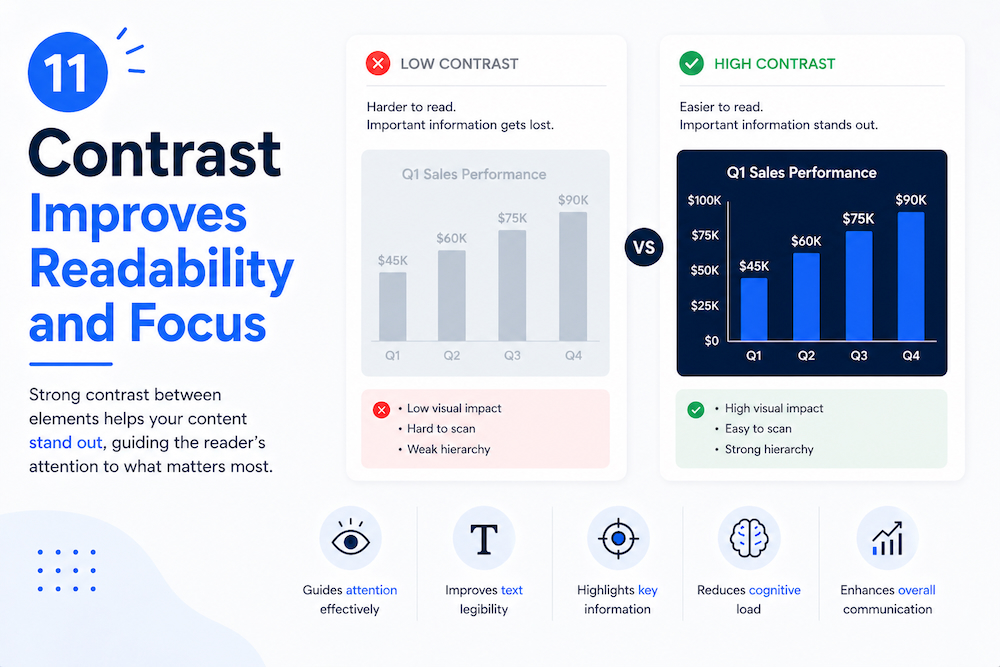
Contrast helps important points stand out.
- Use dark text on a light background or vice versa.
- Make key points bigger, bolder, or different in color.
- Avoid colors that are hard to read together (like light yellow on white).
- Use size differences to show importance (headings vs. body text).
Without contrast, everything looks the same—and people don’t know where to focus.
12. Motion and Transitions (Use Sparingly)
Animations and transitions can enhance presentations when used thoughtfully—but they can also become distracting.
Guidelines:
- Use simple transitions (fade, slide).
- Avoid too many animations per slide.
- Refrain from animating every element.
- Use motion only to emphasize key points.
The purpose of animation is to support storytelling, not entertain the audience.
Conclusion
The most important thing in design is simple: focus on communication first.
Remember, a presentation isn’t a design contest—it’s a way to share your ideas.
Graphic design principles are not optional enhancements for presentations; they are the foundation of effective communication. Things like clarity, hierarchy, simplicity, consistency, typography, color, alignment, white space, imagery, data, contrast, motion, storytelling, and accessibility all help shape how your message comes across.
When you use these principles well, your presentations go from cluttered slideshows to powerful storytelling tools. They help your audience understand quickly, remember longer, and stay engaged.
You can also use ready-made PowerPoint graphics that already follow good graphic design principles, such as alignment, contrast, and spacing. They save time and help you create professional-looking presentations without needing advanced design skills.