How to Enable Voice Chat on Roblox & Change Your Voice: A Complete Guide
Roblox’s Spatial Voice Chat feature has revolutionized how players interact, making game environments more immersive and social. It allows real-time, proximity-based communication, meaning the closer you are to another player’s avatar, the louder and clearer you hear them. Furthermore, using a voice changer adds a layer of fun, creativity, and role-playing potential, allowing you to sound like your favorite game character, a robot, or anything else you can imagine.
This comprehensive guide will walk you through the essential steps to enable Voice Chat on your Roblox account and then show you how to enhance your experience by changing your voice in real-time.
Part 1: How to Get Voice Chat (Spatial Voice) on Roblox
Roblox has strict safety measures in place, which means the Spatial Voice feature is not automatically available to all users. You must meet two key requirements: you must be 13 years or older and you must verify your age with a valid photo ID.
Step 1: Verify Your Age (13+ Requirement)
The first and most critical step is proving you meet the minimum age requirement. This process is handled securely through a third-party verification partner.
Log into Your Roblox Account: Open the Roblox website or app and log in using your credentials.
Navigate to Settings: Click the gear icon ⚙️ in the top-right corner, then select Settings.
Start Verification: In the Account Info tab, look for your birthday details and click the Verify My Age button.
Note: If your listed birth date is under 13, you may need to update it first, though the verification process will confirm the final age.
Prepare Your ID: A prompt will appear with instructions to scan a QR code using your mobile device. Have a valid photo ID ready (Driver’s License, Passport, etc.).
Scan and Upload: On your phone, follow the link from the QR code. You will be asked to upload images of your photo ID and take a real-time selfie for biometric comparison.
Confirmation: The verification process usually takes only a few minutes. Once confirmed, you will receive a notification that your age has been successfully verified, and the Voice Chat feature will become accessible.
Step 2: Enable the Spatial Voice Chat Feature
Once your age is verified, you can toggle the feature on within your privacy settings.
Go to Privacy Settings: Back in your Roblox account Settings, select the Privacy tab on the left-hand menu.
Locate Voice Chat Toggle: Scroll down to the “Other Settings” section.
Enable Voice Chat: You will see the option: Enable Voice Chat (or Spatial Voice). Toggle the switch to the ON position (it should turn green).
In-Game Activation:
After enabling the feature, join any Roblox experience that supports Spatial Voice.
Upon joining, you should see a microphone icon 🎙️ hovering over your avatar’s head.
When the microphone icon is greyed out or slashed, your microphone is muted.
To speak, simply unmute the microphone by clicking or tapping the icon. Your voice is now being broadcast to players near you!
Part 2: Changing Your Voice on Roblox with EaseUS Voicewave
Once you can communicate with Spatial Voice, you might want to explore the creative possibilities of using a voice changer. A dedicated tool allows you to role-play specific characters, add funny effects, or even protect your privacy by disguising your natural voice. For an outstanding and feature-rich experience, we recommend EaseUS Voicewave.
Introducing EaseUS Voicewave: The Ultimate Roblox Voice Changer
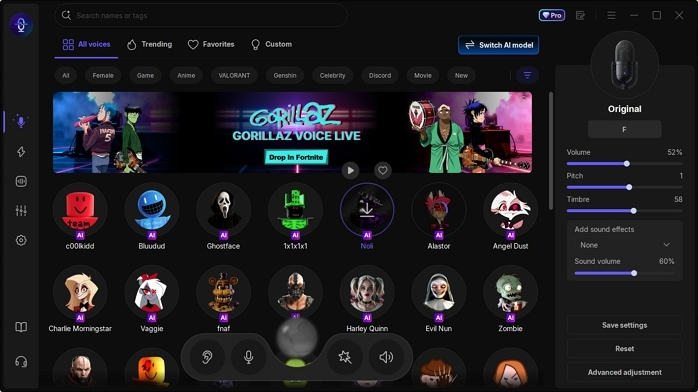
EaseUS Voicewave is a real-time voice changer software designed to seamlessly integrate with games and communication platforms like Roblox, Discord, and Twitch. It stands out for its vast library of effects, low latency, and ease of use, making it an excellent choice for Roblox enthusiasts.
Key Functions of EaseUS Voicewave
1. Dedicated Roblox Voice Changer Capabilities:
Real-Time Transformation: The core function allows you to modify your voice as you speak with zero noticeable delay, crucial for fast-paced gameplay and social interactions in Roblox.
Vast Voice Library: Access a wide variety of AI-driven voice effects, including popular character voices, alien, robot, male-to-female, female-to-male, and cartoon personas perfect for role-playing in experiences like Adopt Me! or Brookhaven.
Custom Keybinds: Set specific hotkeys to instantly switch between voices or trigger sound effects without leaving the game environment.
2. Other Comprehensive Functions:
Massive Soundboard: Beyond voice changing, Voicewave provides a Soundboard feature packed with thousands of meme sounds, background noises, and comedic effects that can be triggered in-game to enhance the fun.
Voice Creation Studio: Users can fine-tune effects to create entirely unique voice personalities by adjusting pitch, tone, and timbre, and then saving these custom voices for repeated use.
Universal Compatibility: While powerful for Roblox, Voicewave is designed to work as a virtual audio device, making it compatible with nearly all PC-based voice applications, including Skype, Zoom, and all major gaming platforms.
Voice Recording and Modification: The software includes features to record your voice and then apply effects, allowing for pre-recorded content creation.
How to Set Up EaseUS Voicewave for Roblox
Using a voice changer involves telling your computer to use the software’s altered output as your microphone input in Roblox.
Download and Install: Download the EaseUS Voicewave software and complete the installation on your Windows PC or Mac.
Set Up Audio Devices:
Launch EaseUS Voicewave.
In the settings, ensure your physical microphone is selected as the Input Device.
Select your headphones or speakers as the Output Device so you can hear your altered voice in real-time (if monitoring is enabled).
Choose Your Voice: Browse the available voice effects (e.g., ‘Giant’, ‘Chipmunk’, ‘Deep Male Voice’) and click on the one you wish to use.
Configure Roblox Input: This is the most important step for integration:
○ Open your Roblox game.
○ Go to Settings > Privacy > Microphone Input.
○ Change the selected microphone from your physical mic to the virtual device created by the software, often named “EaseUS Voicewave Virtual Audio Device” or similar.
Start Talking: Join a game with Spatial Voice enabled, unmute your mic, and your friends will now hear the filtered voice you selected in the Voicewave software!
Part 3: Frequently Asked Questions (FAQs)
1. Is using a Voice Changer allowed on Roblox?
Yes, using a third-party voice changer software is generally allowed by Roblox’s Terms of Service. However, any content, including altered voices, must still adhere to the Roblox Community Standards. Using a voice changer to harass, bully, or transmit hateful/explicit content is a violation and can lead to account suspension. Use it responsibly and for fun.
2. Why is the Voice Chat option missing from my Privacy settings?
If you have enabled voice chat on Roblox, but the option is not visible in your settings, it means:
You have not completed age verification: You must verify that you are 13 or older.
Roblox has not finished processing: In rare cases, the feature takes a few minutes to appear after verification. Log out and back in.
Regional Restriction: Though widely available, always confirm if there are any current regional restrictions on the feature.
3. Does Spatial Voice Chat work on mobile devices (iOS/Android)?
The Spatial Voice Chat feature itself is supported on mobile devices once you have an age-verified account. However, most complex, real-time voice changer software like EaseUS Voicewave are primarily designed for PC (Windows) and Mac and do not offer a mobile version capable of integrating with the Roblox app on iOS or Android.
Conclusion
Enabling Spatial Voice Chat on Roblox is a straightforward process centered around age verification. Once enabled, the platform becomes a much more engaging social experience. By integrating a powerful tool like EaseUS Voicewave, you unlock an entirely new dimension of creativity and fun, allowing you to instantly change your voice for role-playing, entertainment, and personal expression. Enjoy the vast possibilities of a truly spatial and personalized Roblox experience.