• Home
  • Design
  • Advertising
  • Inspiration
  • Tools
  • Buzz
  • Follow Us ▾
    • Facebook
    • Facebook Group
    • LinkedIn
    • LinkedIn Group
    • Threads
    • Instagram
    • Pinterest
    • Twitter / X

Digital Synopsis

Design, Advertising & Creative Inspiration

  • Photoshop
  • Logo Design
  • UI/UX
  • AI
  • Web Design
  • Typography
  • Photography
  • About Us
  • Advertise

Adobe ‘Fast Mask’ Lets You Quickly Select And Mask Any Moving Object In A Video

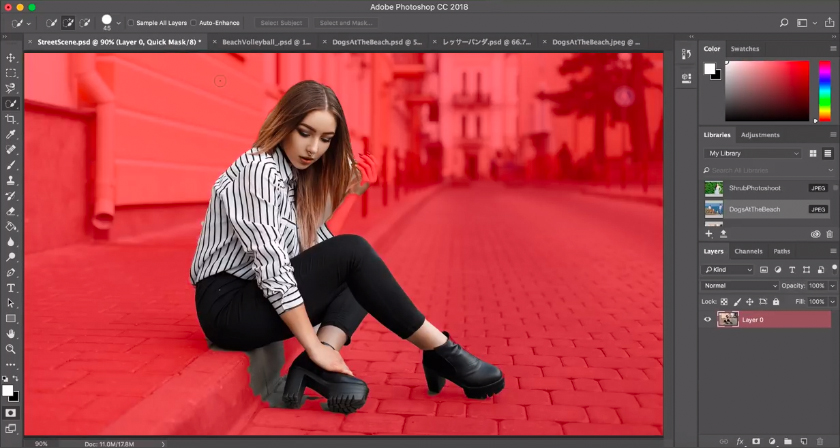
In After Effects, if you want to add text or an effect behind an object in a video, you can use the Roto Brush to select the object, and then apply a mask. However, the current Roto Brush is not a very intuitive tool and in most cases the mask breaks after the first frame, specially if the object is fast-moving (like a dancer or a person running). You can spend hours manually fixing each frame but that would be tedious and time-consuming.

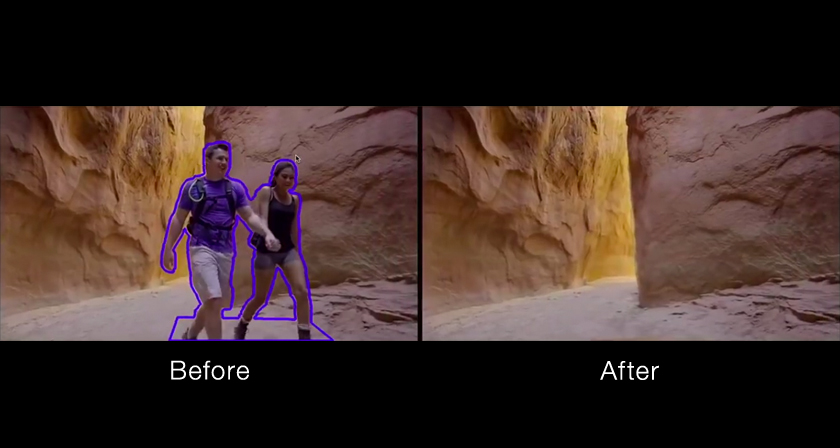
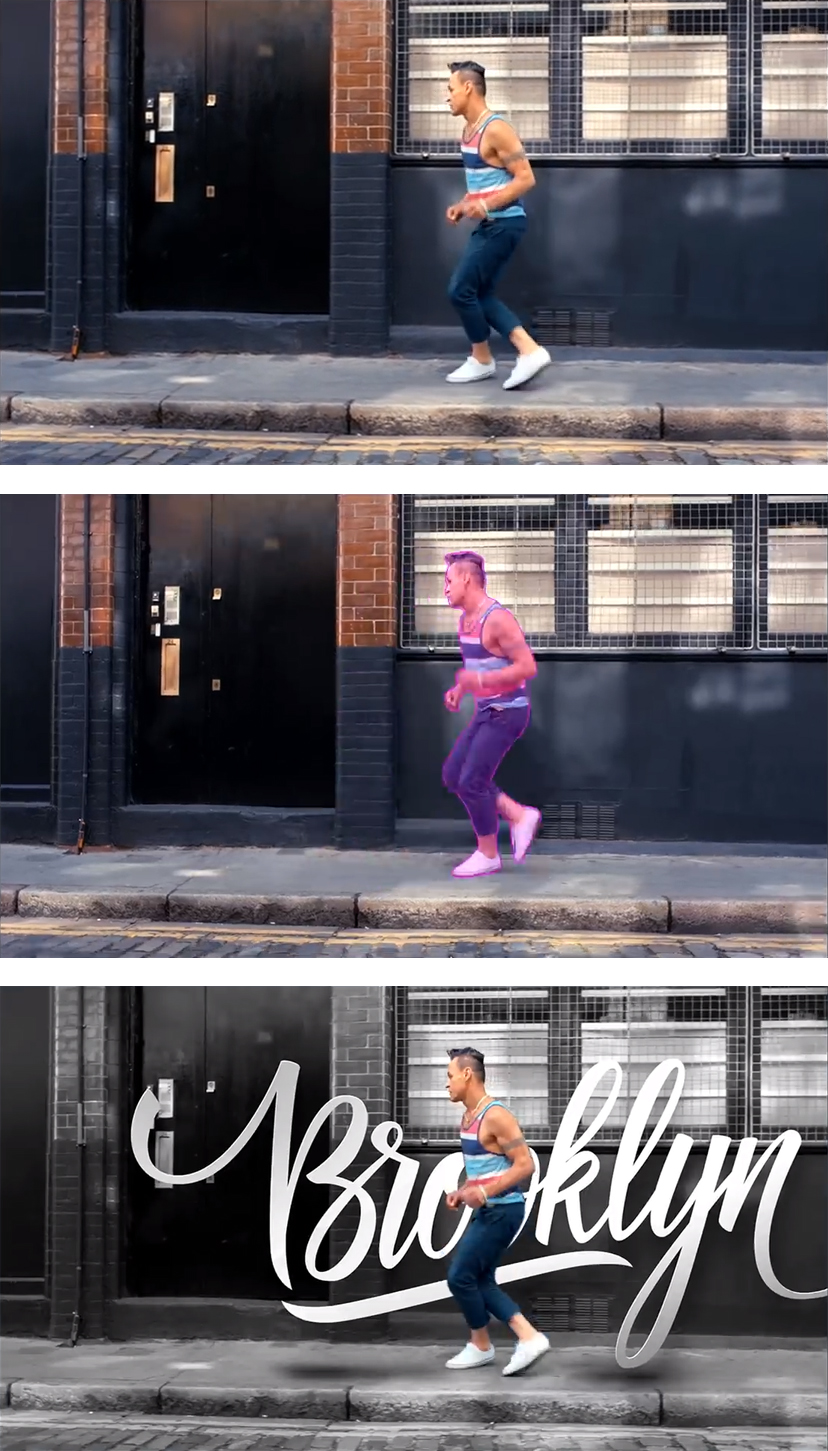
Well, Adobe is working on a brilliant new tool called ‘Fast Mask’ that lets you quickly select an object in a video and accurately apply the mask across multiple frames of the video. All you have to do is add a few boundary points to select the object in one frame and click Propagation. Adobe Sensei artificial intelligence (AI) automatically applies the selection mask to the object in all subsequent frames, making a laborious manual process nearly automatic.

Watch the tool in action below

00:32 – Conventional frame-by-frame selection
01:03 – Using Fast Mask to select object across all frames
02:02 – Adding effects between foreground and background
02:36 – Eg 2: Videos with complex environment
03:54 – Eg 3: Obstructions in front of object

Like us on Facebook to be notified when ‘Fast Mask’ is available for download.

Share this post with a designer friend and voice your views in the comments below.
Don't Miss:

  • photoshop-object-selection-tool
    Photoshop's New 'Object Selection Tool' Is A Dream Come True For Designers
  • adobe-photoshop-select-subject-tool
    Photoshop's New 'Select Subject' Tool Lets You Select People And Objects In Just One Click
  • how-to-make-dramatic-skies-photoshop
    Learn In One Minute How To Make Skies Gorgeously Dramatic In Photoshop
  • how-to-remove-white-edges-cut-outs-photoshop
    This Clever Photoshop Trick Helps You Remove White Edges When Cutting Out Images
  • adobe-cloak-remove-unwanted-objects-from-video
    Adobe Cloak Is A Powerful Tool That Can Remove Any Object From Your Video
  • how-to-use-object-selection-tool-in-photoshop
    How To Use Photoshop's Object Selection Tool To Make The Most Accurate Selections

Share Your Views:

Comments for this post are now closed.
Share your thoughts with 433,000+ design lovers on our Facebook Page.

Popular

  • Graphic Designer Fixes The 9 Worst Logos Ever
  • 50 Incredibly Creative Logos With Hidden Meanings
  • 11 Best And Worst Redesigns Of Famous Logos
  • Top 10 Netflix Documentaries For Graphic Designers
  • 11 Differences Between Designers And Clients

TRENDING

  • Top 20 Graphic Design Trends For 2026
  • Top 10 Logo Design Trends For 2026 And How To Use Them
  • Portfolios Of Designers Who Have Worked At Apple, Google, Meta, And More
  • Designers Are Sharing Their Redesigns Of Famous Logos And Some Of Them Are Better Than The Original
  • “Which Current Graphic Design Trend Will Age Badly?” – Here Are The Top Replies

Follow Us On

  • Facebook
  • Facebook Group
  • LinkedIn
  • LinkedIn Group
  • Threads
  • Instagram
  • Pinterest
  • X / Twitter

Copyright © 2012-2026 Digital Synopsis | Privacy Policy | Affiliate Disclosure | Advertise With Us