Data loss on your Windows PC can be distressing, especially if the lost data contains important personal or professional files. There are several reasons, such as accidental deletion, sudden system crash, formatting the drive, or a virus attack, etc., why files might get deleted from your computer.
Fortunately, several free data recovery software tools are available to help you recover lost files in Windows before they are overwritten. These free tools perform a thorough scanning of your storage devices, such as hard drives, SSDs, USB drives, and memory cards, to find deleted or inaccessible files.
Choosing the right free data recovery software for your lost data restoration can be a challenging task, but don’t worry. In this guide, we’ll explore five of the most popular free data recovery software tools available today. The tools covered in this article include:
Tool 1: Stellar Data Recovery Free for Windows
Tool 2: Recuva
Tool 3: Disk Drill
Tool 4: EaseUS Data Recovery Wizard
Tool 5: PhotoRec + TestDisk
Carefully check the features of these free data recovery software tools and then choose the one that best fits your needs.
What to Look for in Free Data Recovery Software?
The aforementioned 5 popular free data recovery software tools vary in features or recovery quality. Before choosing any of these tools, it’s important to understand what matters most.
Free Recovery Limit
Ensure your free data recovery software really supports data restoration without any upgrade. Some allow only 100 MB or 1 GB of free recovery, while others offer unlimited recovery.
Supported OS
A good recovery tool is always compatible with different device OS, including Windows, macOS, and Linux. Always check whether the software is compatible with your operating system before downloading it.
Supported File Systems
Different operating systems use different file systems. A good recovery tool should support common file systems such as NTFS and FAT/FAT32 (for Windows) and APFS and HFS+ (for macOS). The broader the compatibility, the more versatile the software becomes.
Scan Depth
Most recovery software tools support Quick Scan (for fast recovery of recently deleted files) as well as Deep Scan (for thorough analysis of formatted, corrupted, or severely damaged drives). Ensure your recovery tool provides a Deep Scan for better recovery results.
File Preview
The Preview feature lets you preview the recoverable files before saving them on your device. This helps verify whether the files are intact and worth restoring.
Ease of Use
Some recovery tools are designed with a simple and intuitive interface for beginners. Others are command-line based and require technical knowledge. Choose software according to your comfort level and recovery needs.
Quick Comparison Table: 5 Popular Free Data Recovery Software
The table below provides a quick overview of the best free data recovery software options discussed in this guide.
| Tool | OS | Free Cap | Deep Scan | Preview | Best For |
|---|---|---|---|---|---|
| Stellar Data Recovery Free | Win + Mac | 1 GB (Win) | Yes | Yes | Reliable and beginner-friendly option |
| Recuva | Windows | Unlimited | Yes | Yes | Zero-cost Windows recovery |
| Disk Drill | Win + Mac | 100 MB (Win) | Yes | Yes | Best UI & recovery performance |
| EaseUS Data Recovery Wizard | Win + Mac | 2 GB (Win) | Yes | Yes (limited) | Novice users, guided experience |
| PhotoRec + TestDisk | Win/Mac/Linux | Unlimited | Yes | No | 100% free, advanced users |
Tool #1 – Stellar Data Recovery Free for Windows
Best for: Users wanting a reliable free tool with 1 GB recovery and clean UI
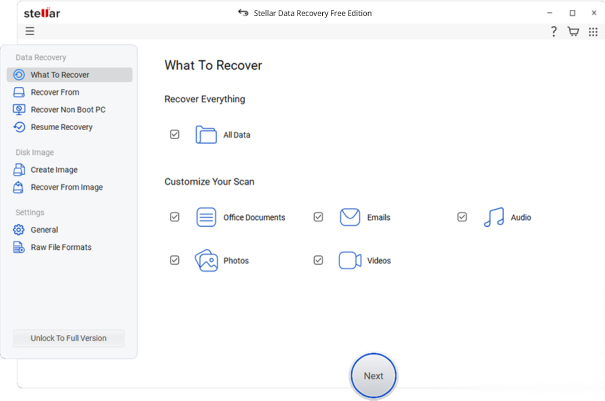
Stellar Data Recovery Free is a versatile and one of the most trusted free data recovery software tools that you can try to restore your deleted files with ease. This software helps you recover your deleted photos, videos, documents, emails, and other files with a few simple clicks. It offers an intuitive interface that makes recovery simple even for first-time users.
The Stellar Data Recovery Free software supports data recovery from various internal and external storage devices, including hard drives, SSDs, USB drives, and even from formatted partitions. It also allows you to preview the recoverable files before restoring them.
Key Features:
- Supports recovery of deleted photos, videos, documents, emails, and other file types.
- The Preview feature lets you preview the recoverable files before saving them on your PC.
- Compatible with both Windows and macOS devices.
- It allows you to preview the recoverable files before restoring them.
- It even supports data recovery from formatted or corrupted partitions.
Supported File Systems: NTFS, FAT/FAT32, exFAT, APFS, HFS+, etc.
Supported OS: Windows and macOS
Pros:
- Clean and user-friendly interface for beginners.
- Supports multiple storage devices, including SD cards, hard drives, etc.
- Deep scan for difficult recovery cases
- Reliable recovery performance with quick recovery process
Cons:
- The free version supports recovery of only up to 1 GB of files on Windows.
- You may need to upgrade to the premium version to enjoy advanced features.
Free Trial Details: The free version supports file recovery of up to 1 GB without any cost.
Paid Upgrade: The software is available in multiple paid versions, supporting unlimited recovery, crashed system recovery, and advanced repair features.
Tool #2 – Recuva
Best for: Windows beginners who need unlimited free recovery with no size cap
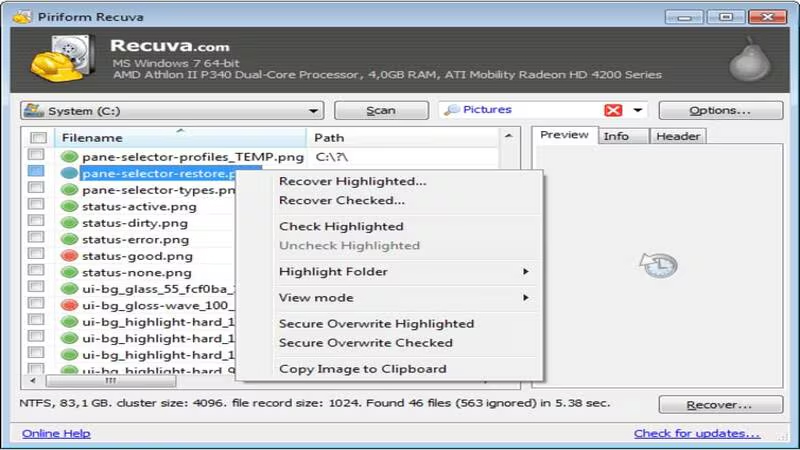
Recuva is a lightweight and popular free data recovery software developed specifically for Windows users. This widely known recovery tool allows you to recover lost files on Windows from various internal and external storage media. Its wizard-based interface helps beginners perform recovery quickly. The deep scan feature improves the chances of finding files that are harder to recover.
Key Features:
- Offers unlimited file recovery without any hidden charges.
- The Deep scan option performs a thorough scan of your storage media to locate hard-to-find deleted or lost files.
- The Secure file deletion feature permanently erases sensitive files to prevent future recovery or unauthorised access.
Supported File Systems: NTFS, FAT, and exFAT.
Supports OS: Windows
Pros:
- Supports data recovery without requiring payment for regular usage.
- Simple setup process with beginner-friendly interface.
- Quickly scans drives and locates recently deleted files within minutes.
- Recover unlimited deleted files without restrictions on file size or quantity.
Cons:
- Lacks macOS or Linux OS support.
- May fail while recovering files from heavily damaged or corrupted storage devices.
- Interface design feels older and less modern than newer recovery tools.
Free Tier Details: It offers unlimited file recovery at no cost, i.e., you can recover deleted files freely without subscription or hidden limitations.
Paid Upgrade: The premium version adds automatic updates and virtual hard drive support. It includes updates, support, and virtual drive recovery features.
Tool #3 – Disk Drill
Best for: Users who want the best performance and room to upgrade
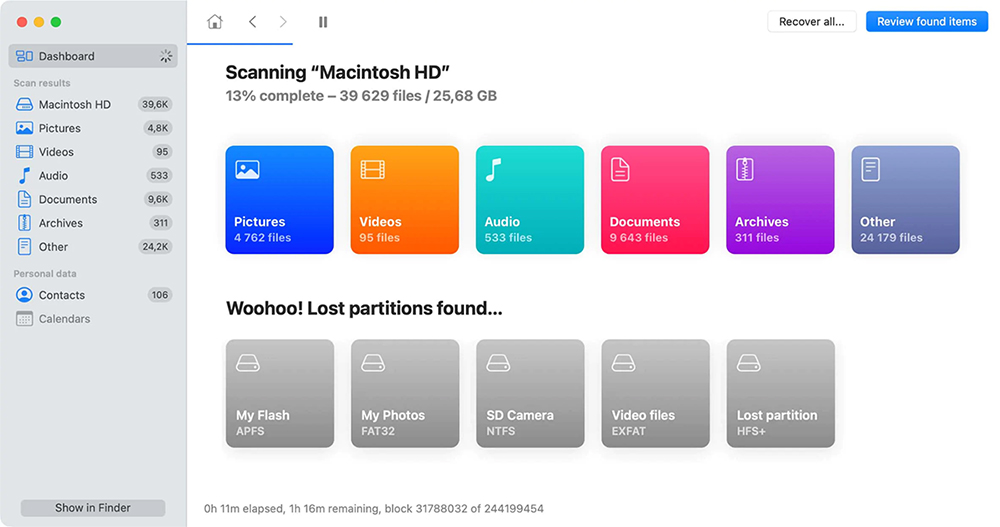
Disk Drill is a widely used recovery tool which allows you to recover lost files in Windows PCs and several internal or external storage devices. You can use this software to recover files from hard drives, SSDs, USB flash drives, memory cards, and even formatted or corrupted partitions. The free version supports file recovery of up to 100 MB without any cost. The software offers both quick scan and deep scan modes to improve recovery success in different data loss situations. It also includes additional data protection tools such as Recovery Vault and drive backup features, which help prevent future data loss.
Key Features:
- Uses advanced scanning technology to locate deeply hidden or difficult-to-recover deleted files.
- The Recovery Vault protection option creates backup records to improve the chances of recovering accidentally deleted important files.
- Allows you to preview recoverable files before restoring them.
- Offers a simple and intuitive interface for smooth and simple navigation.
Supported File Systems: NTFS, FAT/FAT32, exFAT, APFS, HFS+, EXT4, etc.
Supported OS: Windows and macOS
Pros:
- Supports recovery of deleted files from various storage devices with high accuracy.
- Features a visually appealing interface with smooth and user-friendly navigation.
- It offers additional drive protection features to reduce the risks of future data loss.
- Deep scan mode effectively finds older or difficult-to-locate deleted files.
Cons:
- The free version supports the recovery of 100 MB of files on Windows.
- Advanced recovery features require purchasing a relatively costly premium subscription.
Free Tier Details: It offers limited file recovery of up to 100 MB for free, i.e., without any additional payment.
Paid Upgrade: Paid version unlocks unlimited recovery and advanced disk monitoring features. They are also known for unrestricted recovery with additional disk health monitoring tools.
Tool #4 – EaseUS Data Recovery Wizard
Best for: Novice users needing a visual, guided recovery experience
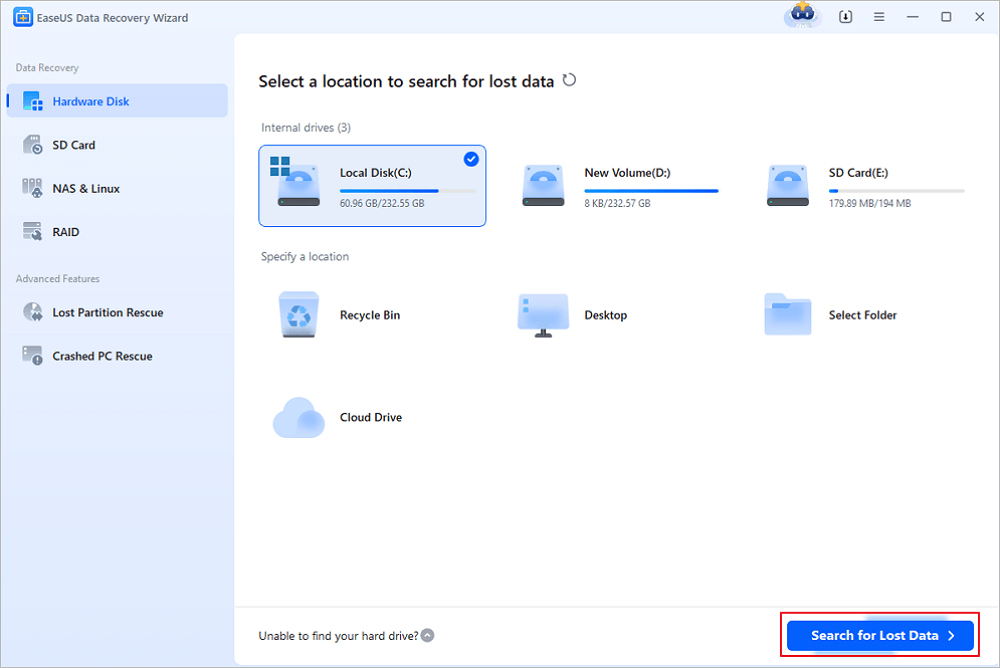
EaseUS Data Recovery Wizard is a popular data recovery software, known for its simple interface and powerful recovery capabilities. It allows you to easily restore deleted, formatted, or lost files from Windows and other storage devices. It provides both quick scan and deep scan modes to locate recently deleted as well as permanently lost data. The software is also known for its clean and beginner-friendly dashboard, making the recovery process easy even for non-technical users.
Key Features:
- Step-by-step recovery process allows you to restore deleted files easily and efficiently.
- Provides fast scans and thorough deep scans for difficult file recovery.
- Organises recoverable files using filters, categories, and sorting options for convenience.
- Compatible with several internal or external storage devices, including hard drives, SSDs, USB drives, and memory cards.
Supported File Systems: NTFS, FAT/FAT32, exFAT, APFS, HFS+.
Supported OS: Windows and macOS
Pros:
- Simple interface and guided steps make recovery easy and quick for first-time users.
- Clean dashboard design helps you easily navigate the recovery options.
- Successfully restores deleted files from different data loss situations and devices.
Cons:
- The free version offers limited file recovery.
- Displays regular premium upgrade notifications during recovery processes.
- Thorough scanning process may be time-consuming, especially on formatted drives.
Free Tier Details: The free version is limited to up to 2 GB of files on Windows. It allows recovering limited data only after completing promotional requirements.
Paid Upgrade: Paid versions provide unlimited recovery and bootable recovery media. It also unlocks unrestricted recovery and emergency bootable recovery tools.
Tool #5 – PhotoRec + TestDisk
Best for: Technically confident users who need truly unlimited free recovery
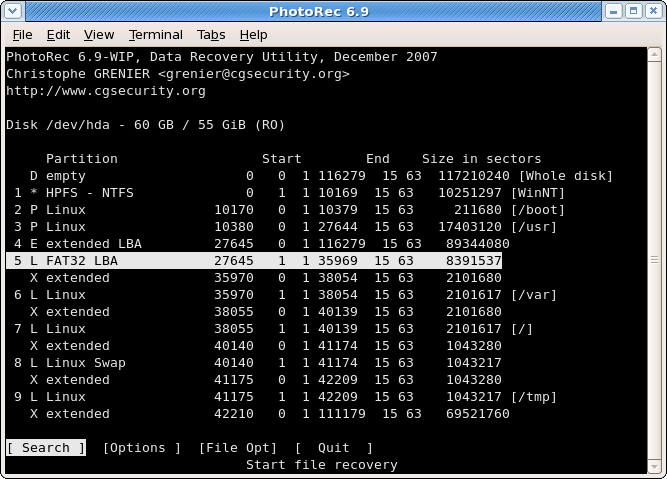
PhotoRec and TestDisk are open-source recovery utilities, widely known for recovering lost files and repairing damaged storage devices. You can use these tools to restore deleted files such as photos, videos, documents, and archives from various storage devices. Unlike most graphical recovery tools, PhotoRec focuses on recovering files through signature-based scanning. These tools are completely free and allow you to recover lost files in Windows, macOS, and Linux systems. However, the command-line interface can feel difficult for beginners compared to modern graphical recovery software.
Key Features:
- Absolutely free and open-source tool.
- Recover unlimited deleted files without restrictions on size or recovery quantity.
- Performs thorough scanning to recover files from severely damaged storage devices.
- Recovers files successfully from formatted, corrupted, or damaged storage devices.
Supported File Systems: FAT, NTFS, exFAT, ext2/ext3/ext4, HFS+
Supported OS: Windows, macOS, and Linux
Pros:
- Provides complete recovery features without subscriptions, payments, or usage limitations.
- Uses advanced scanning methods for recovering deeply lost or deleted files.
- Along with Windows and macOS devices, this software is compatible with Linux OS.
- Performs effectively in severe corruption, formatting, and partition loss situations.
Cons:
- Interface feels technical and less user-friendly compared to graphical recovery tools.
- Lacks preview functionality before restoring your recovered files to storage devices.
- Requires technical understanding, making recovery challenging for first-time or casual users.
Free Tier Details: Unlimited recovery with all features included, i.e., all recovery functions are available freely without hidden restrictions.
Paid Upgrade: No paid version available for these tools, allowing completely free recovery without premium plans or paid feature upgrades.
Tips to Maximise Recovery Success
Now that you’re familiar with how to recover lost files in Windows PC using free tools, it’s time to check a few additional tips for successful data recovery. This includes:
Stop Using the Affected Drive Immediately
Once you encounter data loss on your storage device, immediately avoid saving new files on it. This may overwrite deleted files and make recovery complex.
Recover to a Different Drive
Save your recovered data to a different storage device instead of the same drive you are recovering from. This helps prevent overwriting lost data and improves the chances of successful recovery.
Try More Than One Tool
Sometimes, single free data recovery software may fail to provide you with the required result. Different recovery software tools use different algorithms. If one tool cannot find your files, another may succeed.
Act Faster on SSDs Than HDDs
SSDs use TRIM technology, which may permanently erase deleted data faster than traditional hard drives.
Create a Disk Image First on Failing Drives
If your drive is physically failing or making unusual noises, create a disk image before attempting recovery to avoid further damage.
Quick Format ≠ Permanent Loss
A quick format usually removes file references, not the actual data. Many formatted drives can still be partially or fully recovered.
Conclusion
Issues like sudden data loss on your Windows PC can happen at any time. If you don’t have any backup, go with the aforementioned 5 popular free data recovery software tools to get your deleted files back.
Each of the tools covered in this guide offers different strengths and limitations. The best choice depends on factors such as your operating system, recovery requirements, technical comfort level, and the type of data loss you’re dealing with. Comparing the available options carefully will help you choose the solution that best fits your needs.
If you have recently lost important files, don’t panic. Download one of these free recovery tools and start scanning your drive as soon as possible to maximise your recovery chances.